
Table of Contents
Let’s be honest.
Life gets busy.
Appointments. Meetings. School events. Bills. Birthdays.
If you don’t write things down, you forget. It happens.
That’s why learning how to set up Google Calendar can change everything. It keeps your schedule in one place. Simple. Clean. Easy to use.
And the best part?
It’s free.
Let’s walk through it step by step.
📅 What Is Google Calendar?
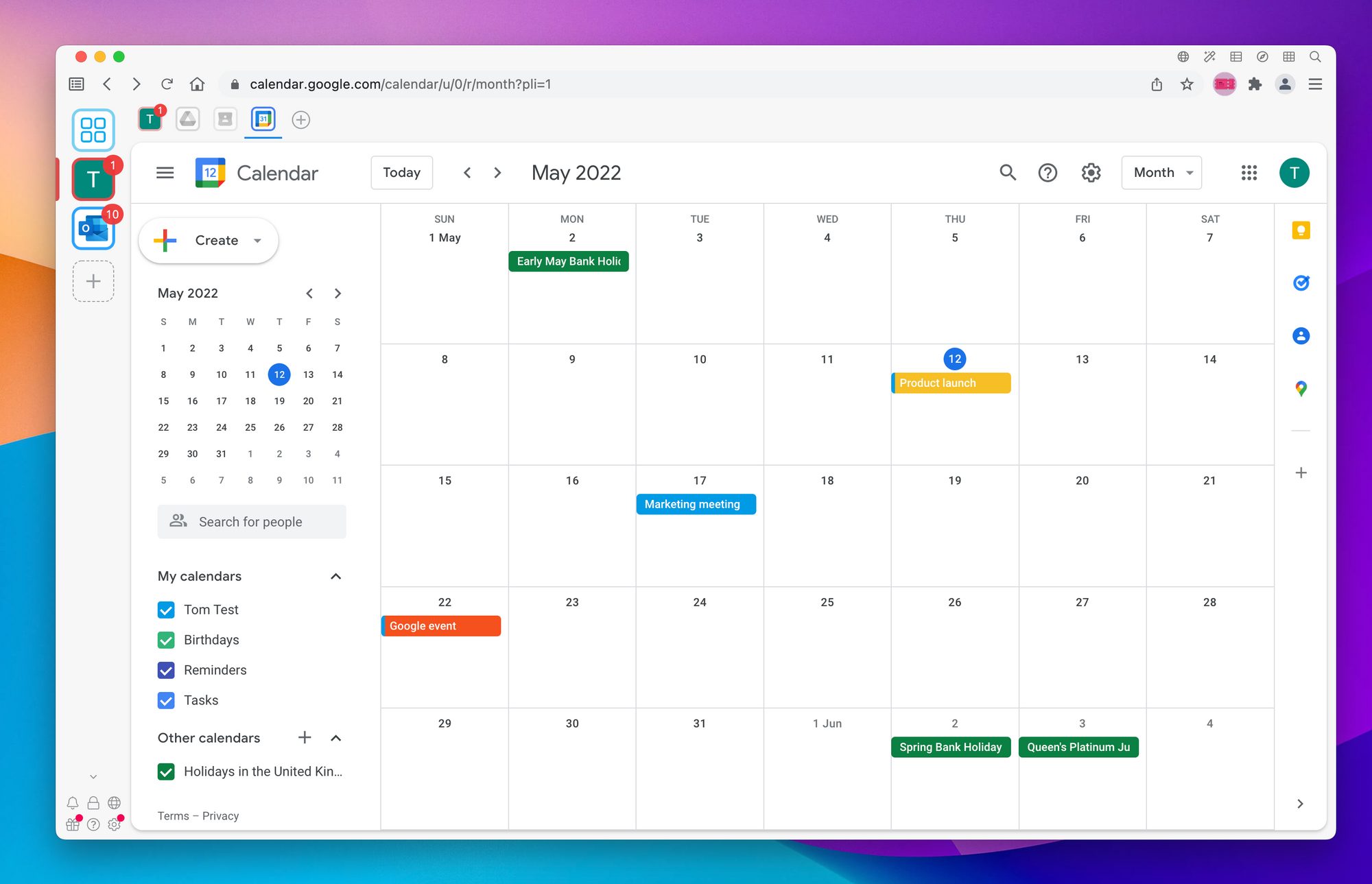
Google Calendar is a free scheduling tool made by Google.
It helps you:
- Create events
- Set reminders
- Share calendars
- Schedule meetings
- Sync across devices
You can use it on:
- Laptop
- Desktop
- Android phone
- iPhone
Everything updates automatically.
💻 How to Set Up Google Calendar on a Computer
This is the easiest place to start.
✅ Step 1: Sign Into Your Google Account
Go to:
Sign in with your Google account.
Don’t have one?
Click “Create account.” It’s free.
🗓 Step 2: Create Your First Event
Now you’re ready.
- Click on a date.
- A small box pops up.
- Type your event name (Example: “Doctor Appointment”).
- Click “More options” for details.
You can now add:
- Time
- Location
- Notes
- Guests
- Notifications
Click Save.
Done.
🔔 Step 3: Set Reminders
Reminders help you avoid forgetting important things.
When creating an event:
- Click “Add notification.”
- Choose how early (10 minutes, 1 hour, 1 day).
You can choose:
- Email reminder
- Phone notification
Super helpful for busy days.
📱 How to Set Up Google Calendar on Your Phone
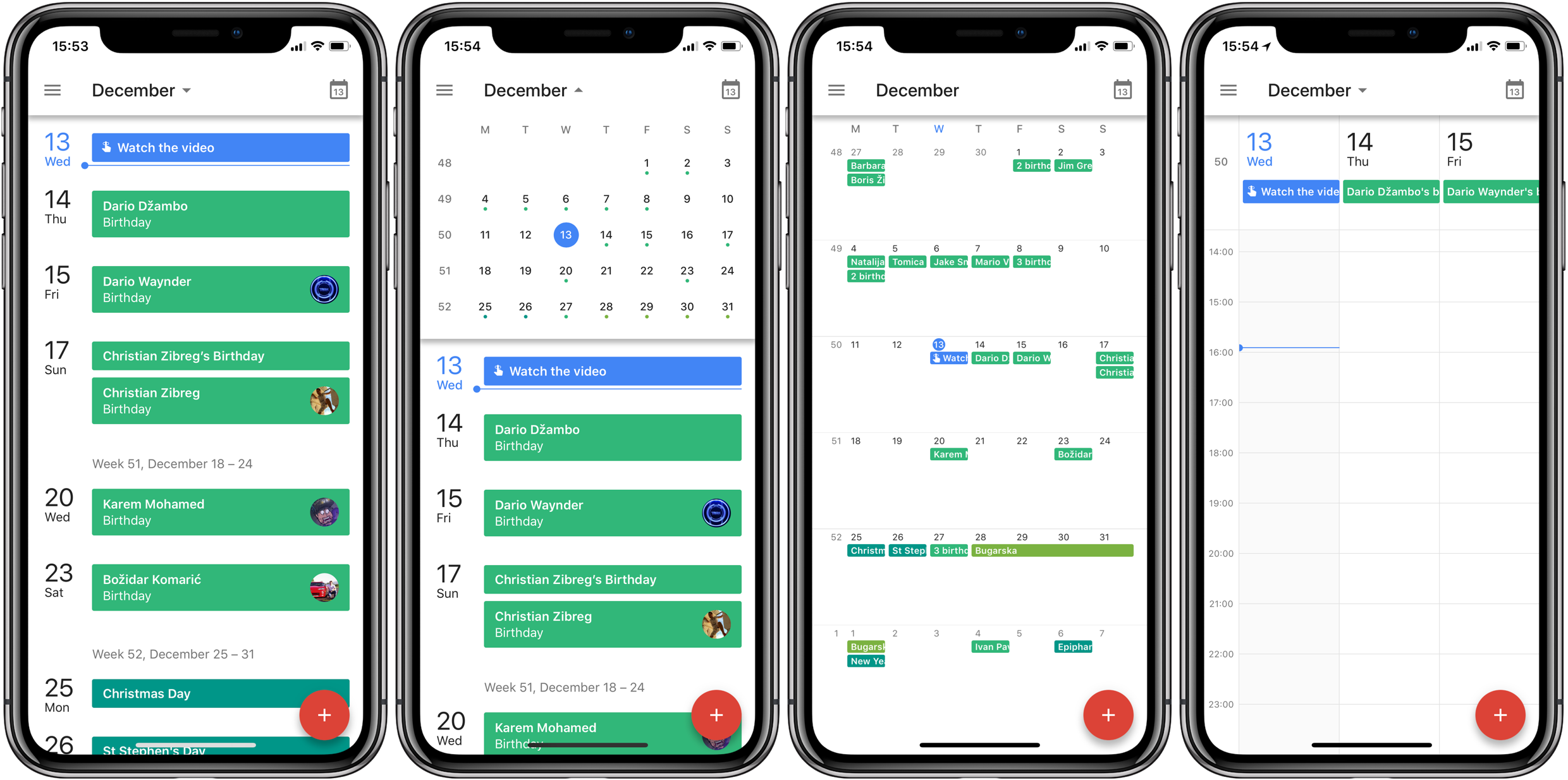
Download the app:
- Android: Already installed on most devices
- iPhone: Get it from the Apple App Store
Open the app and sign in.
To add an event:
- Tap the “+” button.
- Tap “Event.”
- Enter details.
- Tap Save.
That’s it.
It syncs with your computer automatically.
🎨 How to Create Multiple Calendars
You can create separate calendars for:
- Work
- School
- Family
- Personal
On desktop:
- Look on the left side.
- Click the “+” next to “Other calendars.”
- Select “Create new calendar.”
Give it a name.
Now you can color-code events.
This makes your schedule easy to read.
👥 How to Share Your Calendar
Need to share with family or coworkers?
- Click the three dots next to your calendar.
- Click “Settings and sharing.”
- Add their email address.
- Choose permissions.
You can let them:
- View only
- Edit events
- Manage everything
Great for teams or households.
🔁 How to Create Recurring Events
Got something weekly?
Like:
- Gym
- Church
- Meetings
- Classes
When creating the event:
- Click “Does not repeat.”
- Choose “Daily,” “Weekly,” or “Custom.”
Now it repeats automatically.
No need to re-enter it.
⚙️ Customize Your Settings
You can adjust:
- Time zone
- Default reminder time
- Week start day
- Event colors
- Notification sounds
Go to Settings → General.
Make it work your way.

🚀 Why Google Calendar Is So Powerful
Using Google Calendar helps you:
- Stay organized
- Reduce stress
- Plan ahead
- Avoid double-booking
- Never forget important events
Everything is in one place.
And it’s always with you.
⚠️ Common Problems and Fixes
Not Syncing?
Check your internet connection.
Wrong Time Showing?
Check your time zone in settings.
Missing Notifications?
Make sure notifications are enabled on your phone.
Most issues are simple to fix.
❓ Frequently Asked Questions
1. Is Google Calendar free?
Yes, completely free.
2. Can I use it without Gmail?
You need a Google account, but it doesn’t have to be Gmail.
3. Can I use Google Calendar offline?
You can view events offline, but changes need internet.
4. Can I add attachments?
Yes, you can attach files from Google Drive.
5. Does it send reminders automatically?
Yes, if notifications are enabled.
6. Can I sync it with other calendars?
Yes, it can sync with Outlook and other calendar apps.

🎯 Final Thoughts
Learning how to set up Google Calendar is one of the easiest ways to take control of your time.
It takes about 10 minutes to set up.
But it can save you hours of stress.
Start simple:
- Add one event
- Set one reminder
- Create one calendar
Then build from there.
Before you know it, your whole life feels more organized.
And that’s a good feeling.
Related Articles
- Google Business Profile Verification: The Easy Way to Get Approved
- Google Business Profile Suspended? Here’s How to Restore It
- How to Remove Fake Google Reviews (Step-by-Step Guide)
- Do Google Reviews Help SEO? Here’s the Truth
- Local SEO Made Easy With Google Business Profile Optimization
- How to Get More Calls From Your Google Business Listing
- How to Upload Photos to Google Business Profile Easily
- How to Rank Higher on Google Maps (Simple Local SEO Guide)
- How to Contact Google Business Profile Support
- How to Use the Google Business Profile Help Community
- How to Search Google Reviews by Name ( The Easy Beginners Guide)
- Harassment or Offensive Content in Google Reviews (How to Report It)
- How Do I Contact Google Business Support Live Chat (Fast & Easy Guide for Business Owners)
- How Small Businesses Stay Trusted and Profitable During Uncertain Times

- How to Choose the Best Business Internet Plan (Step-by-Step Guide)

- The Secret Connection Between Mobile Phones, Better Websites, and More Google Reviews

- Delete Google Review: The Complete Guide to Removing Reviews

- How to Set Up Google Calendar (Simple Beginner Guide for 2025)

Latest Articles