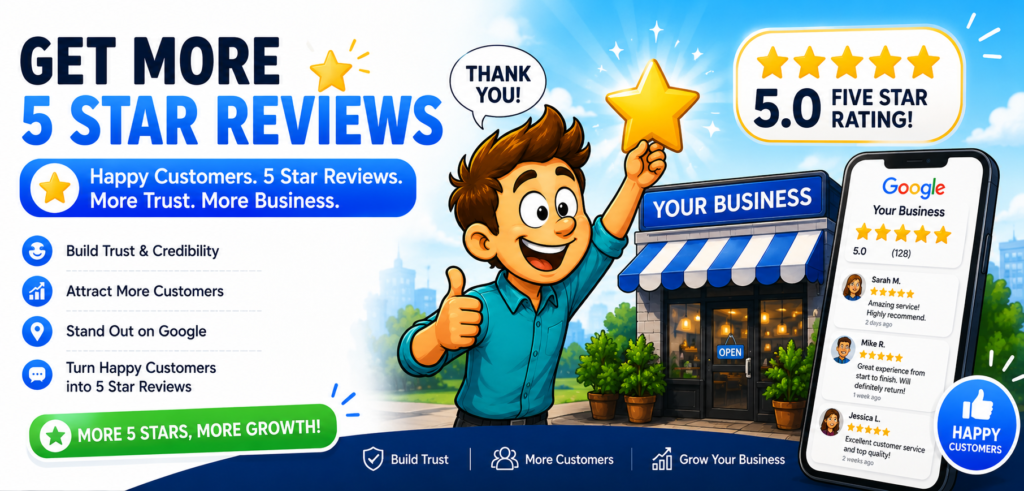

How many satisfied patients visited your medical office this month?
Now ask yourself a harder question: How many of them received a Google review request?
Your team may provide excellent care, answer questions, and help patients feel comfortable. But once the appointment ends, everyone moves on to the next patient. The review request gets forgotten, and another opportunity to strengthen your online reputation disappears.
Meanwhile, potential patients are comparing your rating, total reviews, recent feedback, and responses with other medical practices nearby.
This article will show you how to create a simple Google Calendar follow-up system your staff can use every day. You will learn how to schedule review reminders, assign responsibility, send requests at the right time, follow up respectfully, and monitor new patient feedback.
By the end, you will have a clear review-request workflow that can help your practice earn more authentic reviews, build patient trust, and attract more appointments.

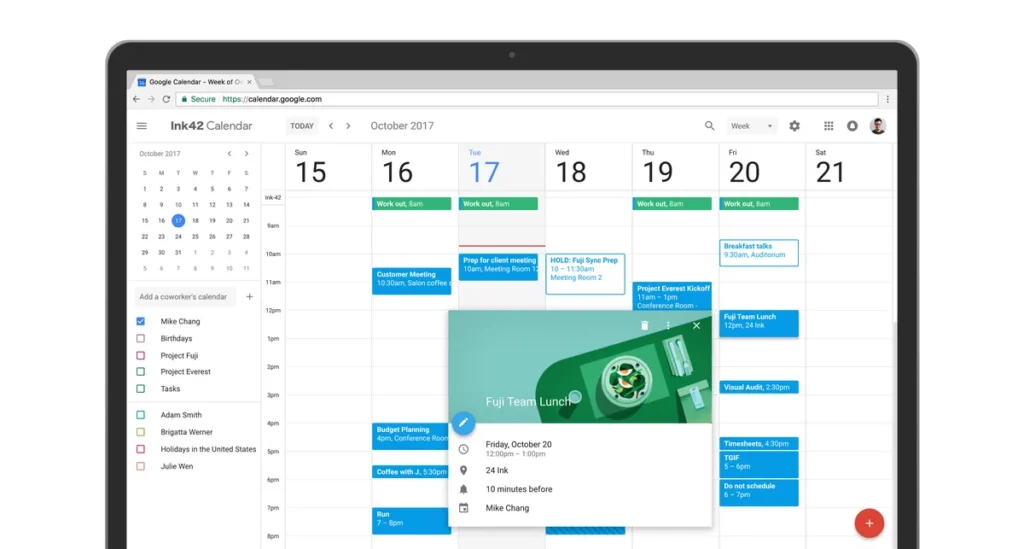
How Do You Set Up Google Calendar to Get More Patient Reviews?
To set up Google Calendar for patient reviews, create a recurring daily reminder, assign one staff member, add your approved review-request message, and schedule one polite follow-up. Medical practices should request honest feedback from patients consistently, avoid incentives, protect patient information, and monitor new Google reviews several times each week.
Why Medical Practices Miss Patient Review Opportunities
Most medical practices do not have a patient satisfaction problem. They have a follow-up problem.
A patient may receive excellent care, thank the staff, and leave the office happy. However, once that patient returns to work, family responsibilities, or daily life, leaving a Google review is no longer a priority.
Your employees also move quickly to the next appointment. They must answer calls, verify insurance, assist patients, update records, and communicate with providers. Without a scheduled reminder, requesting a review becomes another task that everyone intends to complete but often forgets.
A Google Calendar follow-up system gives your staff a clear process for requesting honest patient feedback without relying on memory.
What Is a Google Calendar Patient Review System?
A Google Calendar patient review system is a scheduled workflow that reminds medical office staff when to send review requests, follow up with patients, monitor new feedback, and respond to Google reviews.
The calendar does not send the review request by itself. Instead, it keeps your team organized and reminds the assigned employee to use your approved email, text-message, or review-management platform.
A basic system includes:
- A monthly reputation check
- One staff member responsible for review requests
- A recurring daily reminder
- An approved review-request message
- A direct Google review link
- One respectful follow-up reminder
- Scheduled review-monitoring days
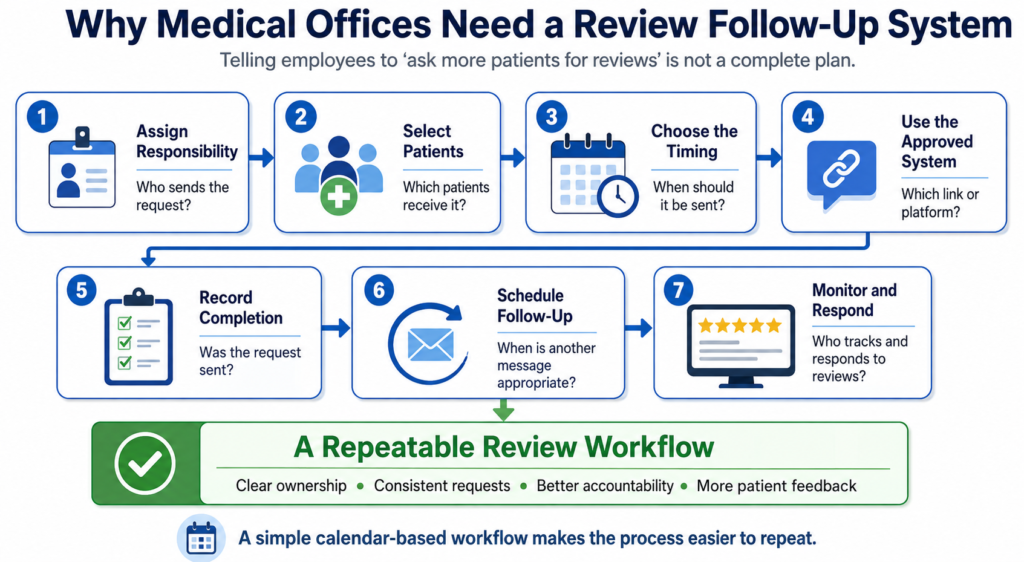
Why Medical Offices Need a Review Follow-Up System
| Workflow step | What employees need to know |
|---|---|
| Assign responsibility | Who sends each review request |
| Select patients | Which patients should receive a request |
| Set the timing | When the request and follow-up should be sent |
| Use approved tools | Which review link, software, or messaging system to use |
| Record activity | How completed and pending requests are documented |
| Schedule follow-ups | When a reminder is appropriate and who sends it |
| Monitor reviews | Who checks and responds to new patient reviews |
How Many Google Reviews Could Your Practice Be Missing?
Enter your monthly patient activity to estimate how many Google review opportunities may be getting missed.
Your Estimated Google Review Opportunity
Get a free Lookhin4 Google Review Audit and discover where your medical practice may be losing patient trust.
Get My Free Google Review AuditEstimates only. Results depend on patient activity, timing, experience, and voluntary participation. Always request honest feedback without offering incentives.
How to Set Up Google Calendar for Patient Review Requests
Step 1: Use a Practice-Controlled Google Account
Visit Google Calendar and sign in with an account controlled by the medical practice.
Avoid building the main workflow under an employee’s personal Google account. A practice-controlled account makes it easier to maintain access when staffing changes occur.
The office manager or authorized administrator should control account recovery information and decide which employees receive calendar access.
Step 2: Create a Separate Review Management Calendar
On a computer:
- Open Google Calendar.
- Find “Other calendars” on the left.
- Click the plus sign.
- Select “Create new calendar.”
- Name it “Patient Review Follow-Up.”
- Add a short description.
- Click “Create calendar.”
Keeping review tasks separate from provider appointments makes the workflow easier to manage.
You can also use different colors for:
- Monthly reputation reports
- Daily review requests
- Patient follow-ups
- Review monitoring
- Staff meetings
Step 3: Assign One Responsible Staff Member
Choose one person to manage the daily review-request process.
This may be:
- A receptionist
- An office manager
- A patient coordinator
- A marketing employee
- A practice administrator
- An approved review-management provider
Other employees may assist, but one person should be responsible for confirming that the task is completed.
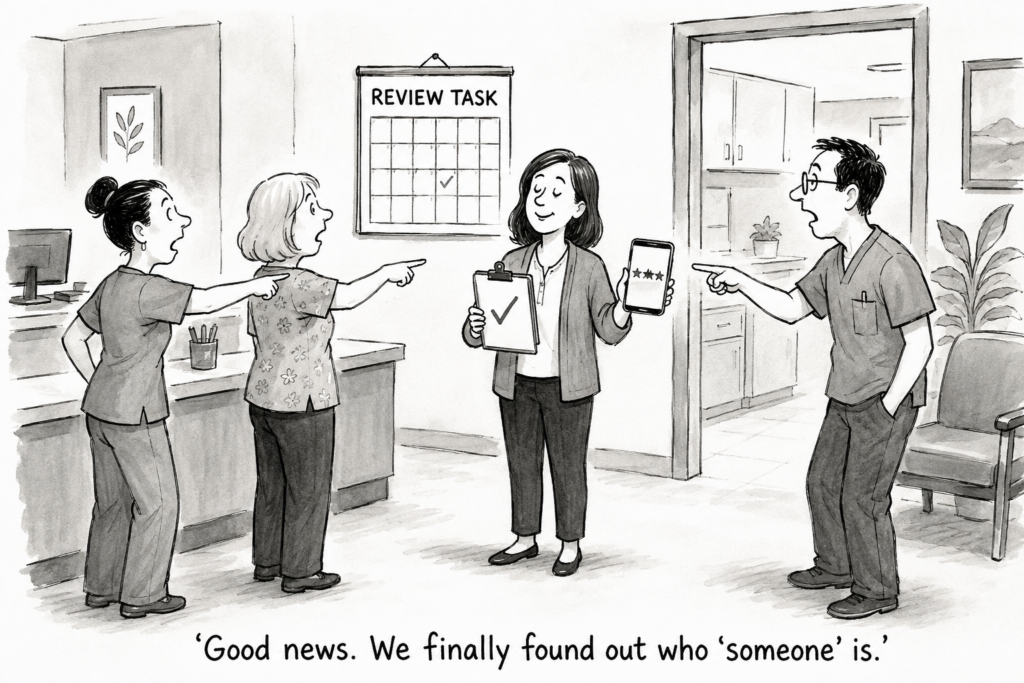
When everyone is responsible, the task can easily become nobody’s responsibility.
Step 4: Create a Daily Review-Request Reminder
Click “Create” and name the event:
Send Today’s Patient Review Requests
Choose a time when the busiest appointment period is over but staff members are still available. For many offices, this may be late afternoon.
Set the event to repeat every weekday.
Google Calendar allows events to repeat daily, weekly, monthly, or on a custom schedule. Add a notification 15 or 30 minutes before the task begins.
Inside the event description, include the workflow:
- Review completed appointments.
- Confirm that the visit is finished.
- Use the approved communication system.
- Send the approved review-request message.
- Record that the request was sent.
- Report unresolved patient concerns internally.
Do not include unnecessary patient information in the calendar description.
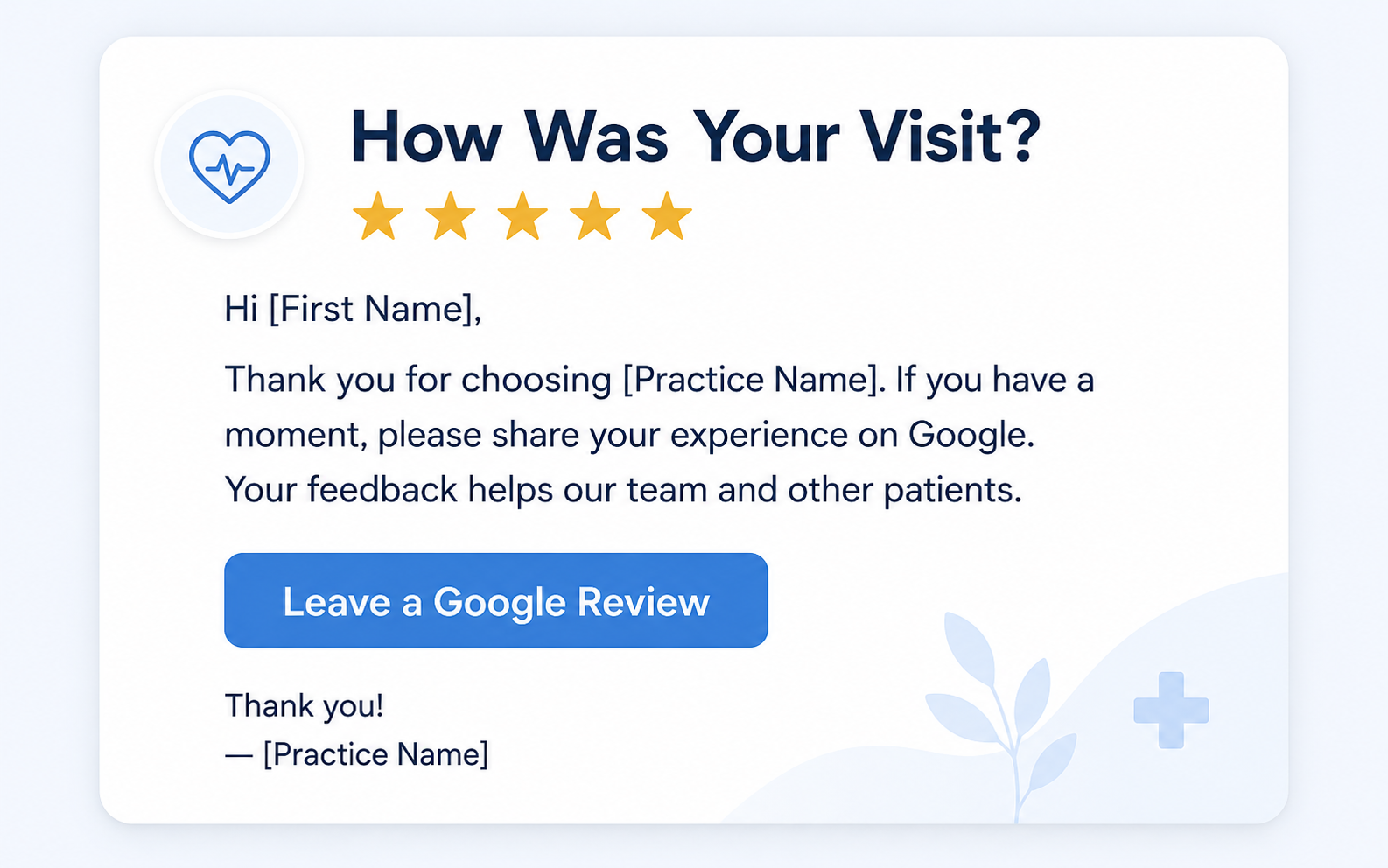
Step 5: Add Your Approved Review-Request Message
Keep the message short, friendly, and easy to understand.
Text-message example:
Thank you for visiting our office. We value your feedback. If you have a moment, please share your honest experience on Google: [Review Link]
Email example:
Thank you for choosing our medical practice. Your honest feedback helps our team improve and helps others learn more about our office. You can share your experience here: [Review Link]
Do not tell patients what rating to leave. The request should ask for honest feedback, not specifically for a five-star review.
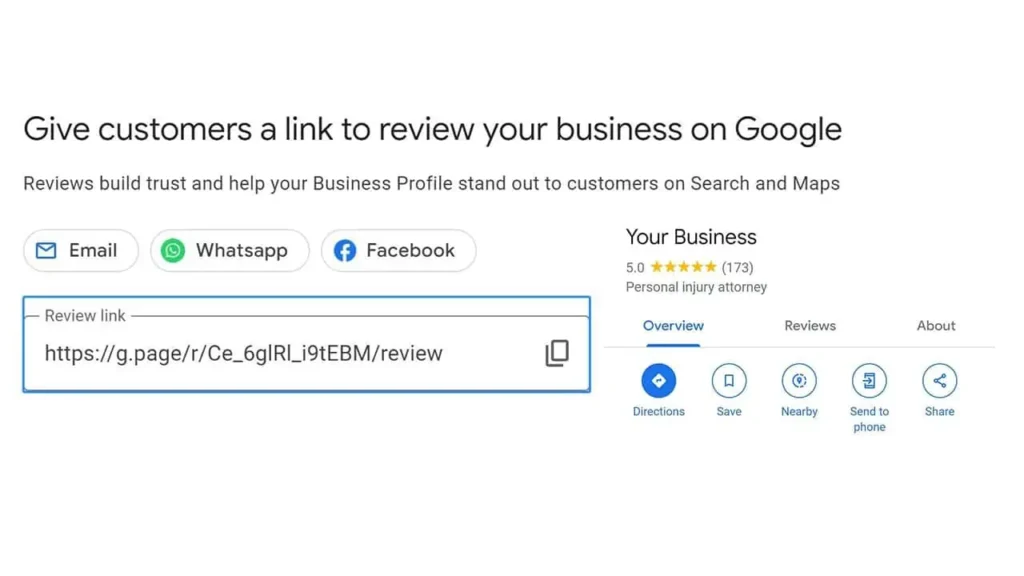
Step 6: Use a Direct Google Review Link
Do not make patients search for your practice, open your profile, and figure out where to leave feedback.
Use a direct review link that takes them to the correct Google review form.
Before using the link:
- Test it on a computer
- Test it on a mobile phone
- Confirm that it opens the correct practice
- Make sure it is easy to click
- Save it inside your approved message template
A broken or incorrect link can reduce the number of completed reviews.

Step 7: Schedule One Polite Follow-Up
Patients may forget the first request. Create a second Calendar reminder for several days later.
Use one short follow-up message:
We wanted to follow up in case you did not have time earlier. Your honest feedback helps our office improve and helps others learn about our practice: [Review Link]
Do not repeatedly contact patients who do not respond. One respectful reminder is usually enough.
Step 8: Schedule Review-Monitoring Days
Create another recurring event called:
Check and Respond to New Google Reviews
Schedule it two or three times each week.
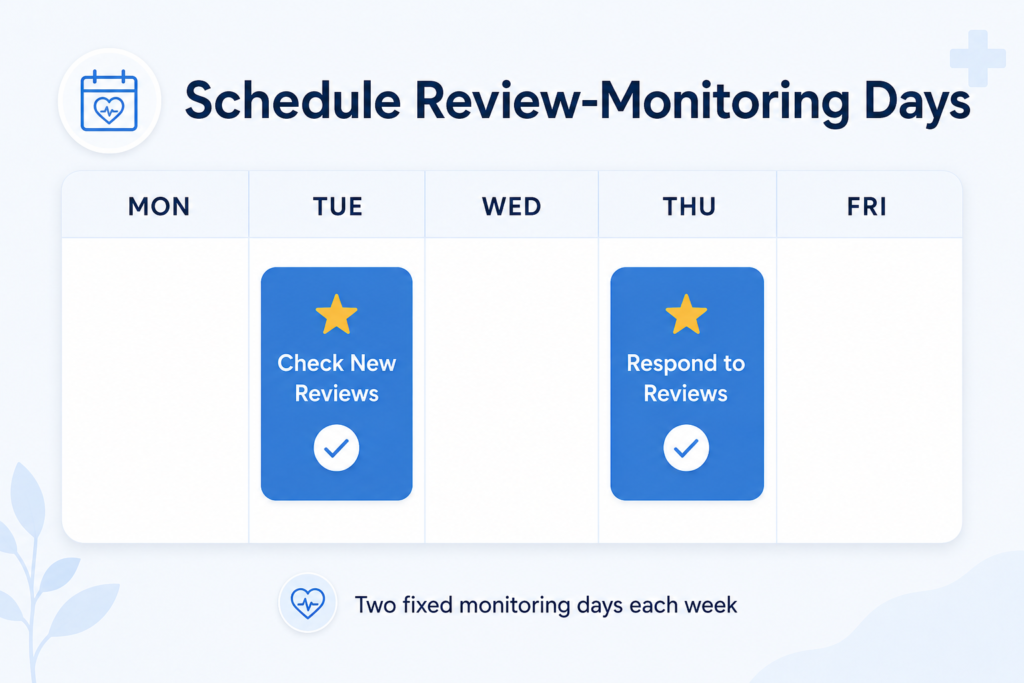
During each review check:
- Read new patient feedback
- Thank reviewers for positive comments
- Identify recurring complaints
- Report urgent concerns internally
- Draft professional responses
- Confirm that responses protect patient privacy
Never discuss diagnoses, treatments, appointment history, or other private information in a public response.
A safe response can invite the reviewer to contact the office privately without confirming that the person is a patient.
Example of Weekly Medical Office Review Schedule
| Schedule | Review-management tasks |
|---|---|
| Monday–Friday | Review completed appointments • Send approved review requests • Record completed requests • Escalate unresolved patient concerns |
| Tuesday & Thursday | Check for new Google reviews • Draft and publish appropriate responses • Report serious complaints to management |
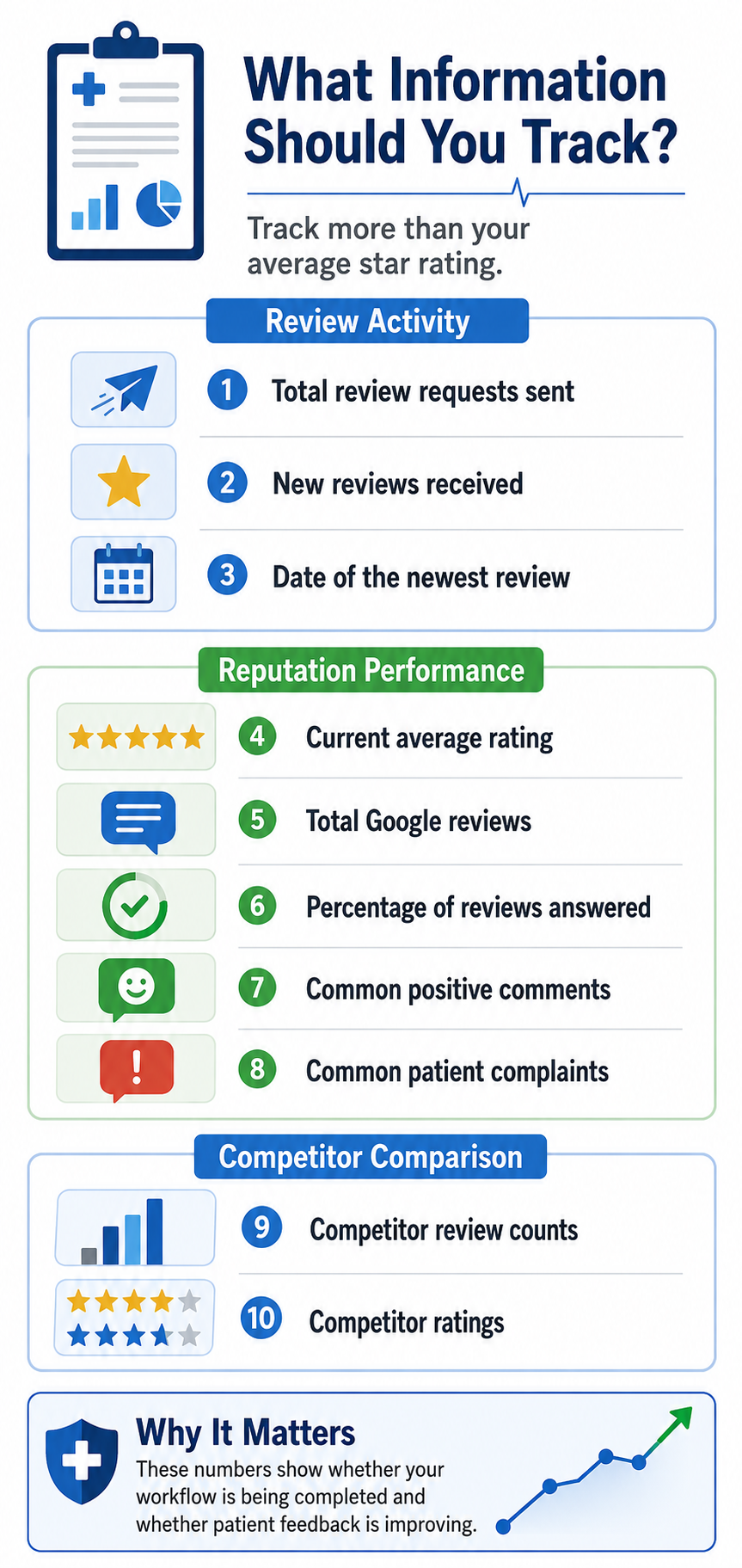
| Friday | Count requests sent • Count new reviews received • Identify incomplete follow-ups • Review common patient concerns |
| Once each month | Record the current Google rating • Count new monthly reviews • Measure the response rate • Check review recency • Compare nearby competitors • Discuss service improvements with staff |
When Should a Medical Practice Request a Review?
A medical practice should normally request feedback after the patient’s appointment or completed interaction.
Possible times include:
- Later on the appointment day
- The following morning
- After a follow-up visit
- After an administrative issue is resolved
- After a completed telehealth appointment
- After the patient receives the requested assistance
The timing should feel natural and respectful.
Do not interrupt treatment or pressure patients while they are receiving care. If someone has an unresolved concern, address the issue through the appropriate office process.

Should Medical Practices Ask Every Patient for a Review?

Practices should use a fair and consistent process instead of asking only people expected to leave positive feedback.
Avoid:
- Asking only visibly satisfied patients
- Offering gifts or discounts
- Paying for reviews
- Asking employees or relatives to post reviews
- Writing reviews for patients
- Telling patients to leave five stars
- Sending unhappy patients to a private form while directing others to Google
Authentic reviews are more valuable because they reflect real patient experiences and build greater public trust.
How Google Reviews Support Healthcare Local SEO
Healthcare local SEO helps a medical practice appear when nearby patients search for its services.
A potential patient might search:
- Family doctor near me
- Dentist in Brooklyn
- Queens physical therapist
- Pediatrician accepting new patients
- Urgent care near me
- Chiropractor in my area
Google reviews are one part of the information people may see when comparing local practices.
Patients may examine:
- Average rating
- Total review count
- Recent reviews
- Comments about staff and service
- Practice responses
- Business hours
- Location
- Website
- Appointment options
A steady flow of authentic feedback can make a practice look active, established, and trusted. Reviews should work alongside an accurate Google Business Profile, a helpful website, consistent business information, and relevant local content.
Can Google Calendar Improve Local SEO?
Google Calendar does not directly improve search rankings simply because your office uses it.
Its value comes from organization.
The calendar helps your staff complete activities that support reputation management and local visibility, including:
Tracking monthly reputation growth
Sending review requests consistently
Monitoring patient feedback
Updating the Google Business Profile
Publishing practice photos
checking office hours
Reviewing local competitors
| Common problem | Simple fix |
|---|---|
| Staff members forget the task | Create two notifications and assign one employee to confirm completion. |
| Nobody knows who is responsible | Add the responsible employee’s name to the calendar event. |
| Patients cannot open the review link | Test the link on multiple devices and confirm it opens the correct Google Business Profile. |
| Requests are sent inconsistently | Create a recurring weekday event instead of adding reminders manually. |
| Reviews remain unanswered | Schedule two fixed review-monitoring days each week. |
| Calendar events reveal too much information | Never include patient names or private details. Follow your organization’s privacy and security policies. |
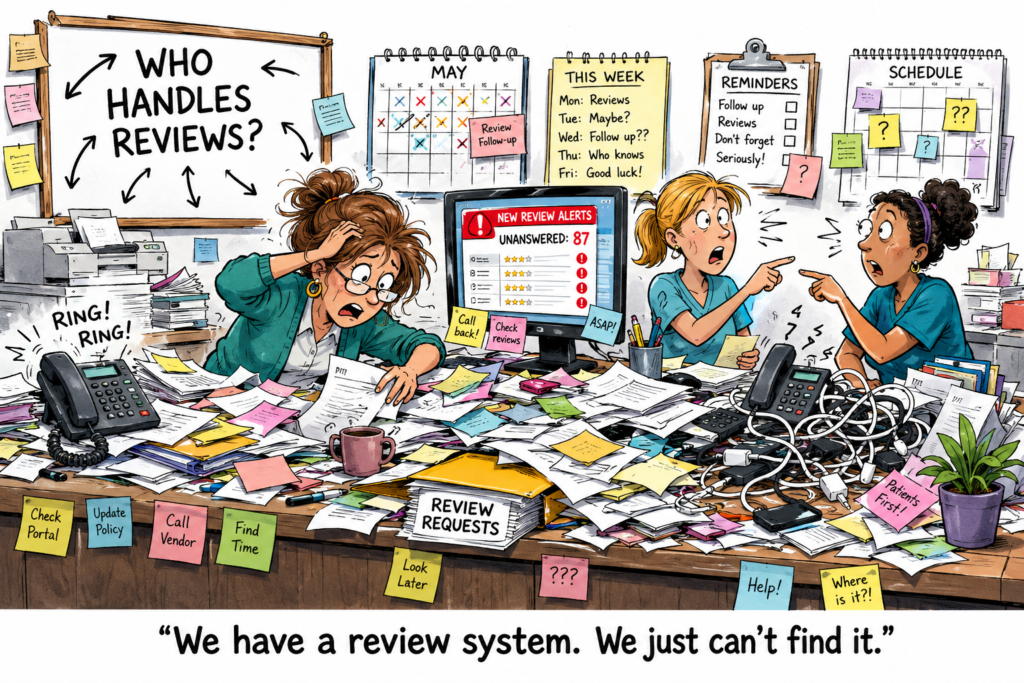
| Staff members have too much work | Reduce manual steps or use a done-for-you Google review management service. |
Signs Your Practice Needs a Better Review System
Your current process may not be working if:
- Your latest review is several months old
- Nearby competitors have significantly more reviews
- Staff members rarely request feedback
- Nobody monitors new reviews
- Negative reviews remain unanswered
- Your office cannot track requests
- Employees use different messages
- Nobody owns the process
- Patient complaints are not shared with management
These problems do not always require more staff. They often require a clearer workflow.
Get a Free Lookhin4 Google Review Audit
Do you know what patients see when they compare your practice with local competitors?
A free Lookhin4 Google Review Audit can help identify:
- How your rating compares locally
- Whether you have enough recent reviews
- How consistently your practice responds
- Where competitors may have an advantage
- What could be reducing patient trust
- Which areas should be improved first


Let Lookhin4 Manage Your Google Reviews
Your staff already manages patients, calls, appointments, paperwork, and daily office responsibilities.
Lookhin4 can help your medical practice:
- Send consistent review requests
- Monitor new patient feedback
- Respond professionally
- Track reputation growth
- Identify potential problems
- Build greater patient trust
- Maintain an organized review process
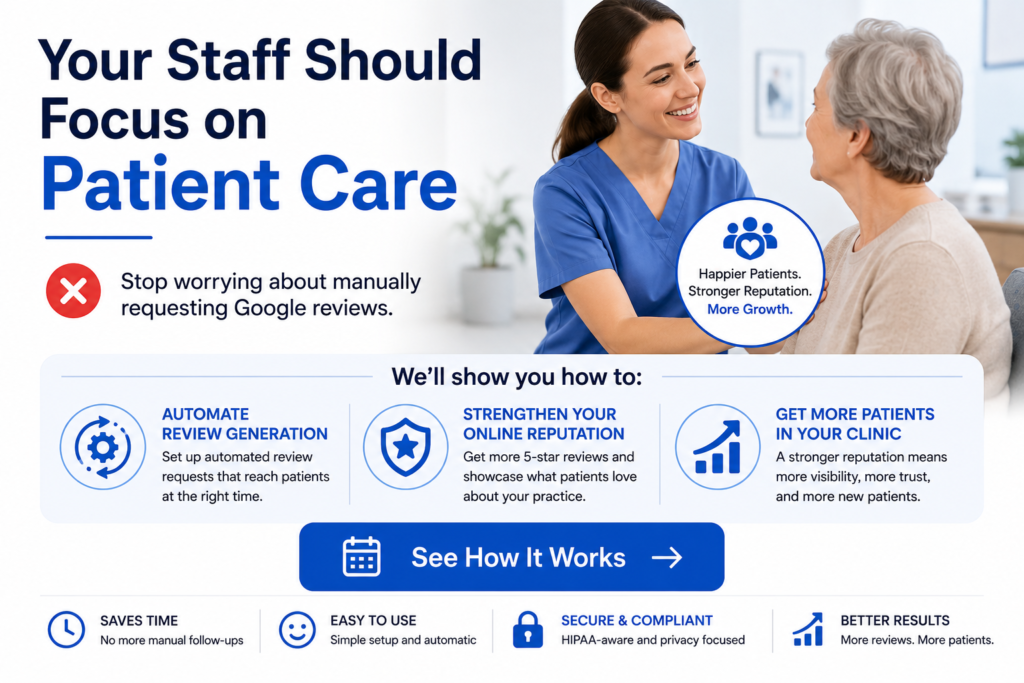
Lookhin4 handles the review process while your staff focuses on running the office and caring for patients.paces
Frequently Asked Questions
Can Google Calendar automatically send Google review requests?
Google Calendar can remind staff when it is time to send a request. The message should be sent through your practice’s approved email, text-message, patient communication, or review-management system.
How often should a medical office request reviews?
Review requests can be sent after completed patient visits as part of a consistent workflow. Avoid sending repeated messages or pressuring patients.
How soon after an appointment should the request be sent?
Many practices send the request later that day or the following morning while the experience is still recent.
Can a medical practice ask for five-star reviews?
A practice should ask for honest feedback rather than requesting a specific rating. Do not offer incentives or attempt to influence what patients write.
How often should a practice check Google reviews?
Checking two or three times each week allows the practice to identify new feedback and respond within a reasonable period.
Does responding to reviews help attract patients?
Professional responses show that the practice pays attention to feedback. Responses must remain general and should never reveal private patient information.
Is Google Calendar free?
Basic Google Calendar features are available with a Google account. Some advanced scheduling features may depend on the account or subscription.
Can multiple employees access the review calendar?
Yes. Calendar owners can share access and choose what each person is allowed to view or change. Only authorized employees should receive access.
Conclusion
Learning how to set up Google Calendar for patient reviews gives your medical office a simple way to organize follow-ups and stop missing valuable opportunities.
The system does not need to be complicated:
- Track monthly results.
- Assign one responsible employee.
- Create a recurring reminder.
- Use an approved message.
- Include a direct review link.
- Send one polite follow-up.
- Monitor new feedback.
The goal is not to pressure patients into leaving five-star reviews. The goal is to provide excellent care and make it easy for patients to share honest experiences.
When the process is consistent, your practice can earn more authentic feedback, strengthen patient trust, and create a better foundation for healthcare local SEO.