
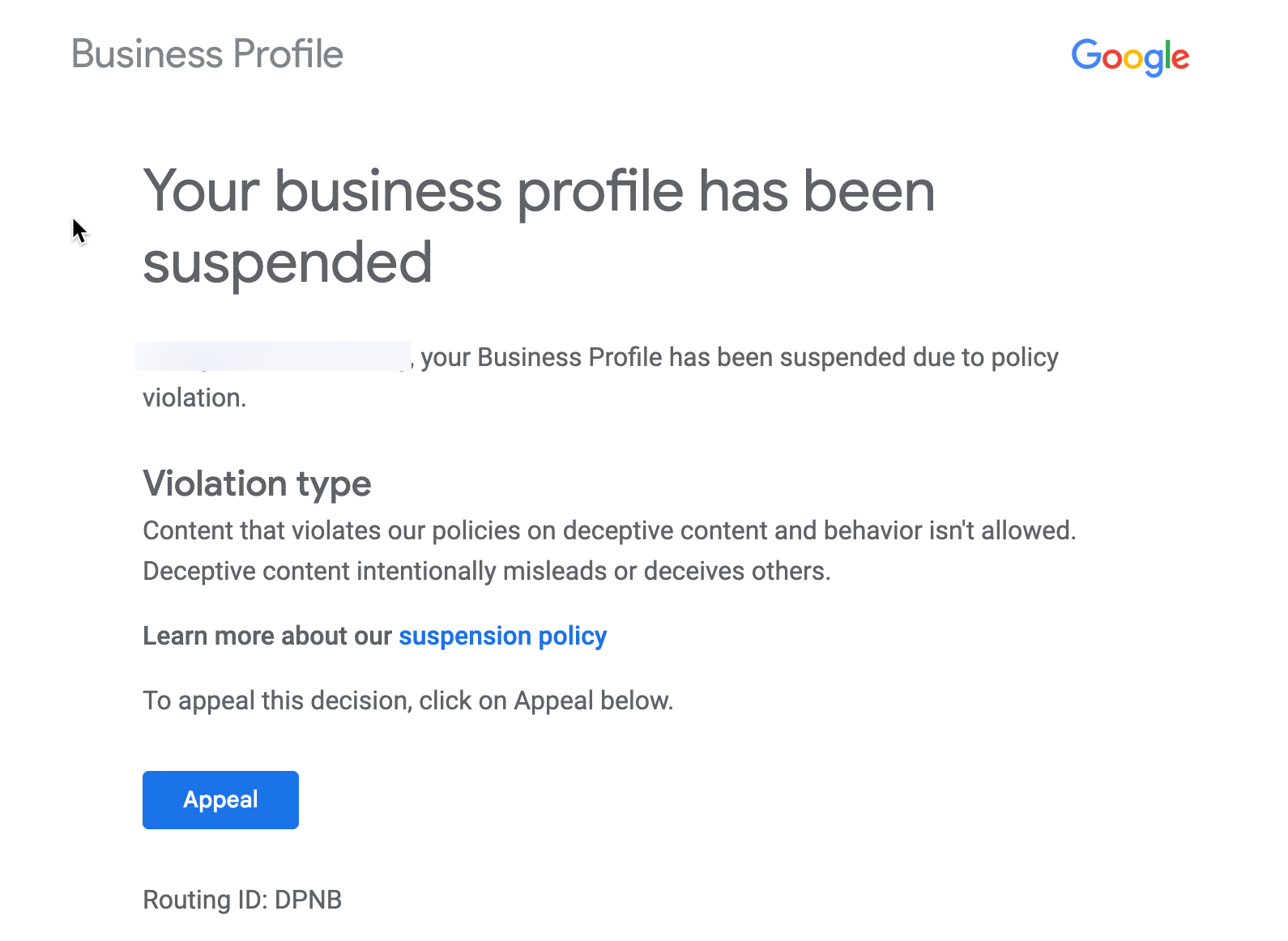
If you run a local business, showing up online is everything. And one of the biggest tools for that is Google Business Profile.
Your listing helps people find you on Google Search and Google Maps.
It shows things like:
- customer reviews
- your phone number
- hours
- directions
- photos

But sometimes—outta nowhere—Google suspends your listing.
Yeah… it’s frustrating.
Your business disappears from search results and customers can’t find you anymore.
So if you’re dealing with a Google Business Profile suspended notice, don’t panic. Let’s walk through what’s going on and how to fix it.
Why Google Suspends Business Listings
Let’s keep it real.
Google suspends listings to prevent spam or fake businesses.
But sometimes real businesses get caught in the system too.
Common reasons include:
- incorrect business address
- keyword stuffing in the business name
- multiple listings for the same location
- virtual office addresses
- violating Google guidelines
If Google thinks something looks suspicious, they may suspend the listing.

Types of Google Business Profile Suspensions
There are two main types of suspensions.
Soft Suspension
Your listing still exists, but you lose control of it.
That means:
- edits are blocked
- you can’t manage the profile
Hard Suspension
This is more serious.
Your listing disappears from Google search and Google Maps completely.
That means customers can’t find your business online.
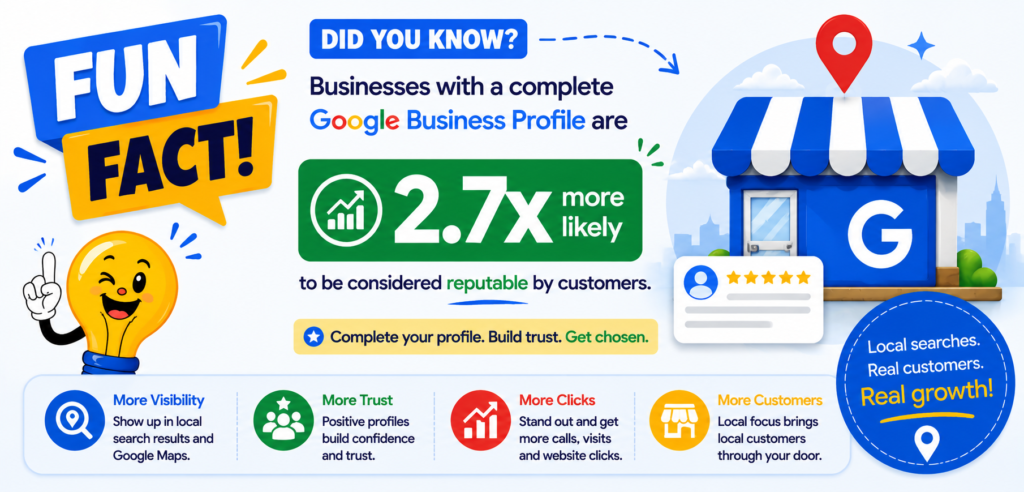
Many Google Business Profile suspensions stem from broader trust and local SEO issues. Our Google Review Management and Local SEO services help businesses rebuild authority, improve visibility, and protect their online reputation long term.
How Poor Google Review Signals Can Trigger Google Business Profile Problems
Then explain:
- Fake reviews
- Review spam
- Inconsistent customer engagement
- Review velocity spikes
- Competitor attacks
- Poor trust signals
These can contribute to GBP scrutiny.
Then transition naturally:
Businesses with proactive review management and active local SEO maintenance are significantly less likely to experience long-term visibility issues after a suspension.


Step-by-Step: How to Fix a Suspended Google Business Profile
Alright, here’s the process.

Step 1: Review Google Business Guidelines
First, check the official rules.
Google has clear policies for business listings:
Look for anything that might violate those rules.
Step 2: Fix Your Business Information
Make sure your listing includes:
- real business name
- accurate address
- correct category
- valid phone number
Remove any keyword stuffing or misleading info.

Step 3: Submit a Reinstatement Request
Once your profile follows the rules, submit a reinstatement form.
Google will review your listing and decide whether to restore it.

Step 4: Wait for Google Review
Reinstatement usually takes:
- a few days
- sometimes up to two weeks
Be patient and avoid submitting multiple requests.

What to Do if Your Reinstatement Request Gets Denied
Sometimes Google rejects reinstatement requests.
If that happens, you still have options.
You can:
- resubmit the request
- review the guidelines again
- correct additional issues
You can also ask for help in the Google Business Profile Help Community.
Experienced product experts often guide business owners there.

Tips to Avoid Future Suspensions
Once your listing is restored, you want to keep it that way.
Here are some simple tips.
Keep Business Information Accurate
Always use your real business name and address.
Avoid Keyword Stuffing
Don’t add extra keywords like:
- “Best Plumber NYC Cheap Emergency Plumbing”
- That’s a common suspension trigger.
Maintain One Listing Per Location
Duplicate listings often cause problems.
Follow Google Policies
Google wants listings to represent real businesses customers can visit or contact.

Final Thoughts
Getting your Google Business Profile suspended can feel like a nightmare.
But most of the time it’s fixable.
Once you correct the issues and submit a reinstatement request, many businesses get their listings restored.
And once you’re back online, customers can find your business again on Google search and maps.
Just keep your information accurate and follow the guidelines moving forward.

- Google Business Profile Verification: The Easy Way to Get Approved
- Local SEO Made Easy With Google Business Profile Optimization
- How to Get More Calls From Your Google Business Listing
- How to Upload Photos to Google Business Profile Easily
- How to Rank Higher on Google Maps (Simple Local SEO Guide)
- How to Contact Google Business Profile Support
- How to Use the Google Business Profile Help Community
- How to Search Google Reviews by Name ( The Easy Beginners Guide)
- Harassment or Offensive Content in Google Reviews (How to Report It)
- How Do I Contact Google Business Support Live Chat (Fast & Easy Guide for Business Owners)
Latest Articles