
How do you leave a Google review for a business?
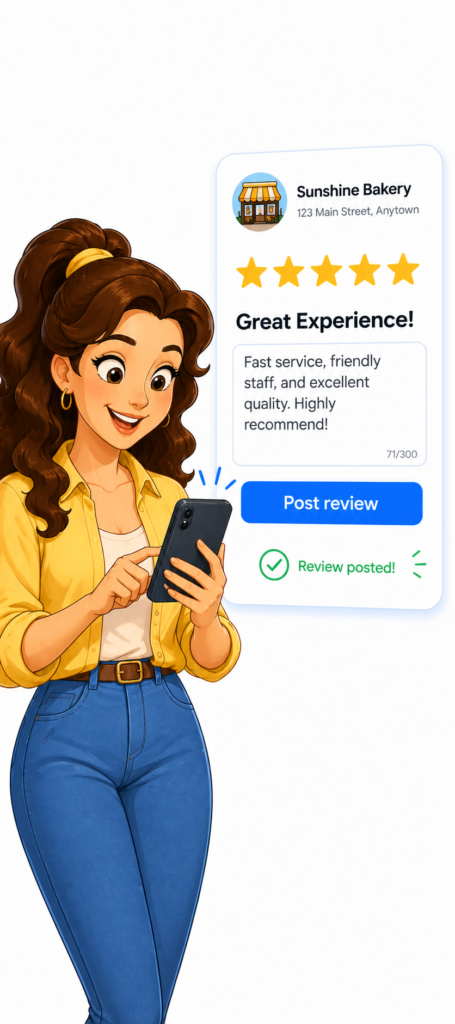
To leave a Google review for a business, open Google Maps or Google Search, find the business, click or tap Write a review, choose a star rating, add your comments, and post it while signed in to your Google account. Google says reviews can be added in Maps, and you can also edit or delete them later.

If you want to support a business you liked, leaving a Google review is one of the easiest things you can do.
A good review helps other people decide if they should trust that business. It also helps the business look more active, more real, and more credible online. Google says reviews show next to a Business Profile in Maps and Search, and they can help a business stand out.
The good news is this process is simple.
You do not need special tools.
You do not need to be a tech expert.
You just need a Google account and a few minutes.
Why Google reviews matter
Google reviews matter because people check them before they choose a business.
When someone is comparing a dentist, salon, contractor, med spa, or restaurant, reviews are often one of the first things they look at. Google’s own business help pages say reviews give potential customers useful information and appear right on the business profile in Search and Maps.
That means one honest review can do more than just say “good job.”
It can help:
- make the business profile look stronger
- build trust
- show that the business is active
- give future customers more confidence
How to leave a Google review for a business
Here are the simple steps.
Step 1: Sign in to your Google account
To leave a review, you need to be
signed in to Google. Google Maps
review help says users can add, edit, or delete reviews through Google Maps while signed in.

Step 2: Find the business
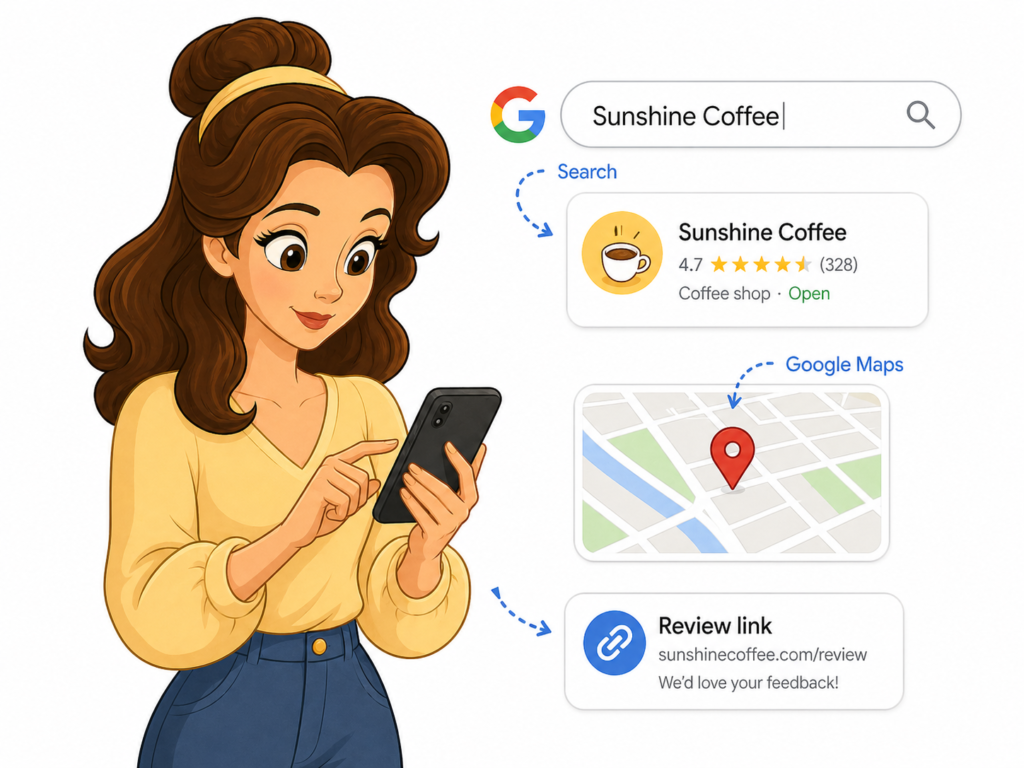
Open Google Search or Google Maps and search for the business name.
You can:
- tap a direct review link if the business sent you one
- type the business name into Google
- open the business in Google Maps
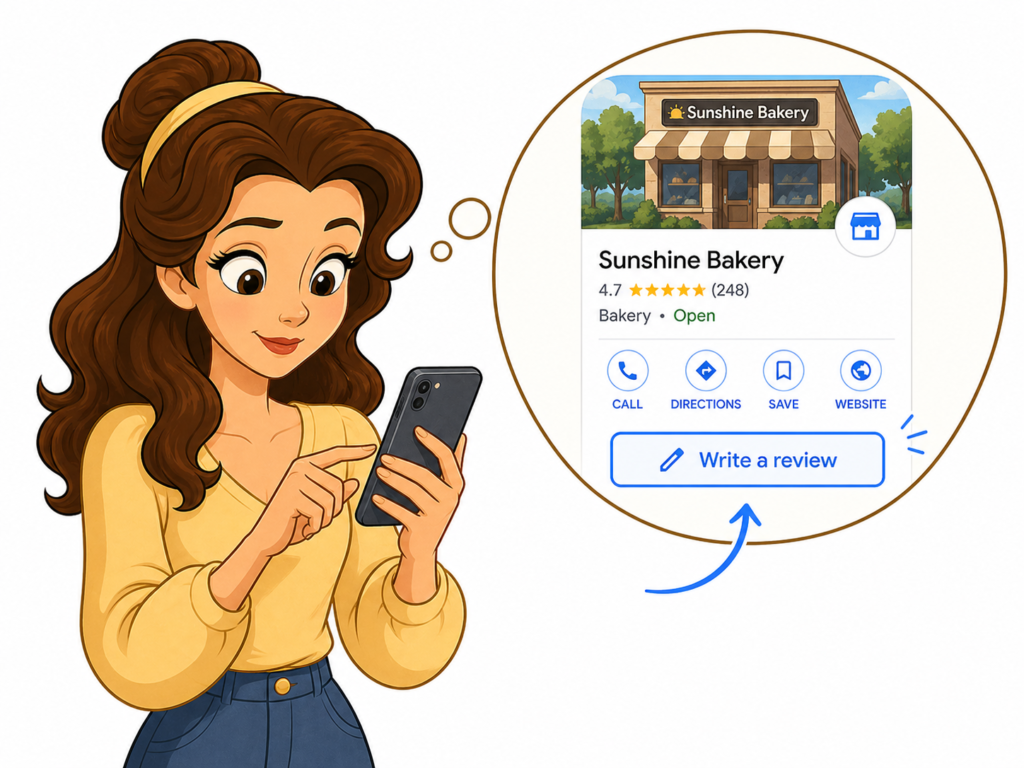
Step 3: Click or tap “Write a review”
Once you open the business listing, look for the Write a review button. Google Maps help says you can write reviews for places you visit, and on Android Google explains that you can tap the stars and then add more details about your experience.
Step 4: Choose your star rating
Pick the number of stars that matches your experience.

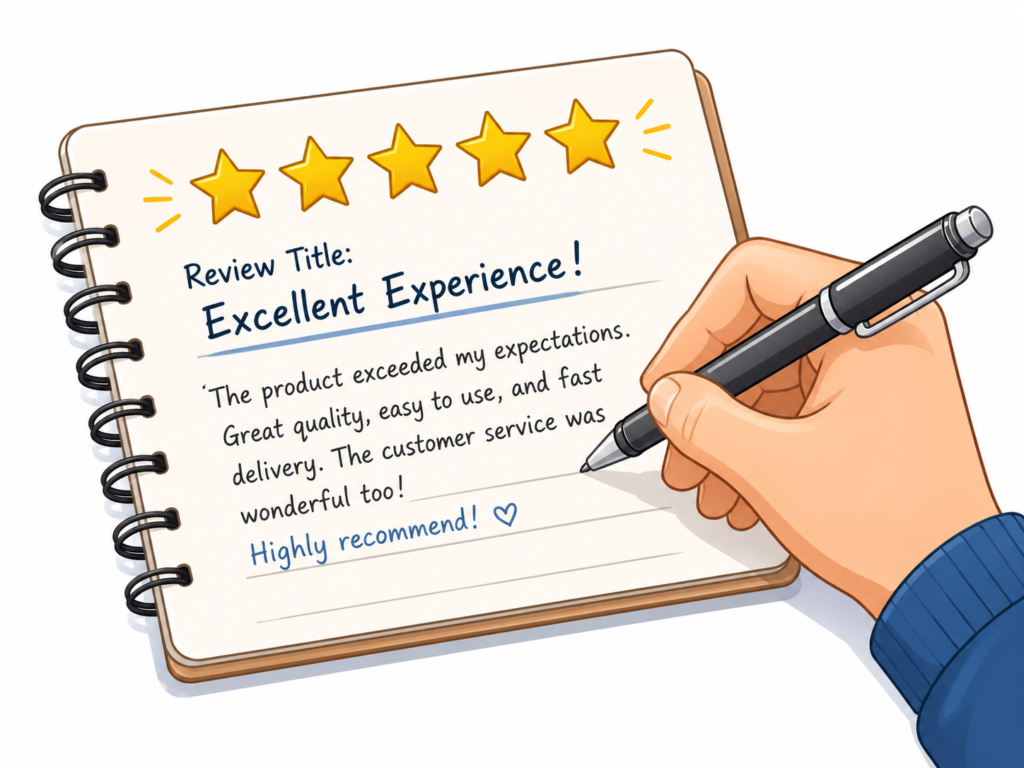
Step 5: Write your review
Keep it honest and simple.
You can mention:
- what future customers should know
- what service you got
- what stood out
- how the staff treated you
- whether you would go back
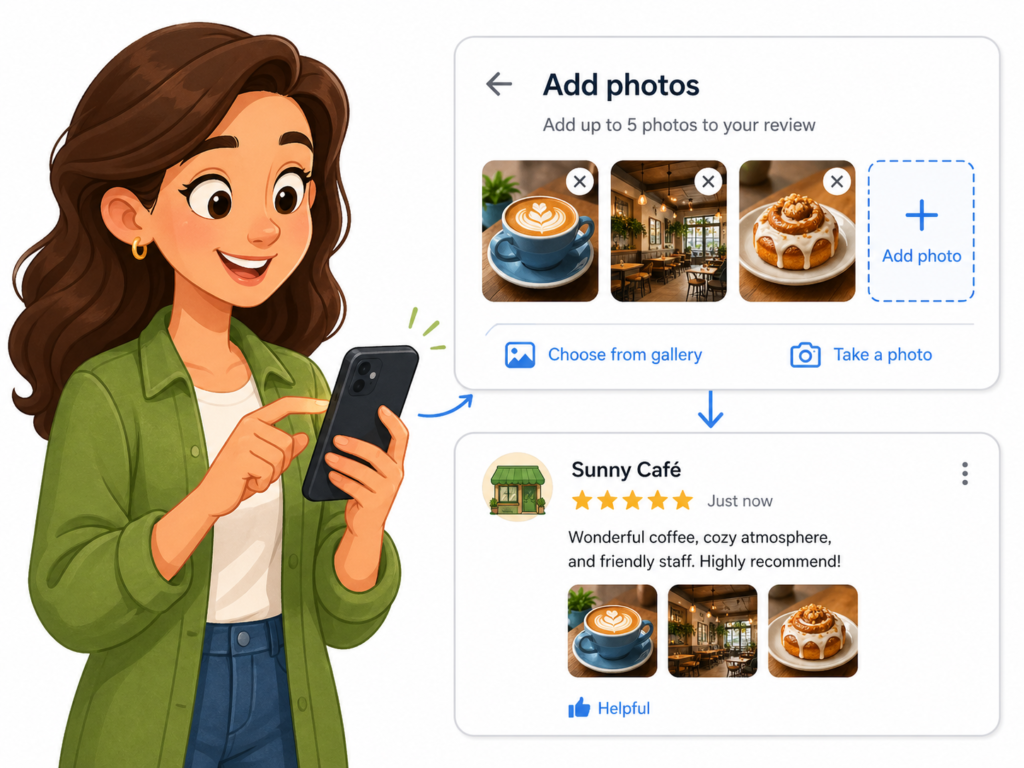
Step 6: Add photos if you want
Google says you can also post photo or video updates with a place review in Maps.
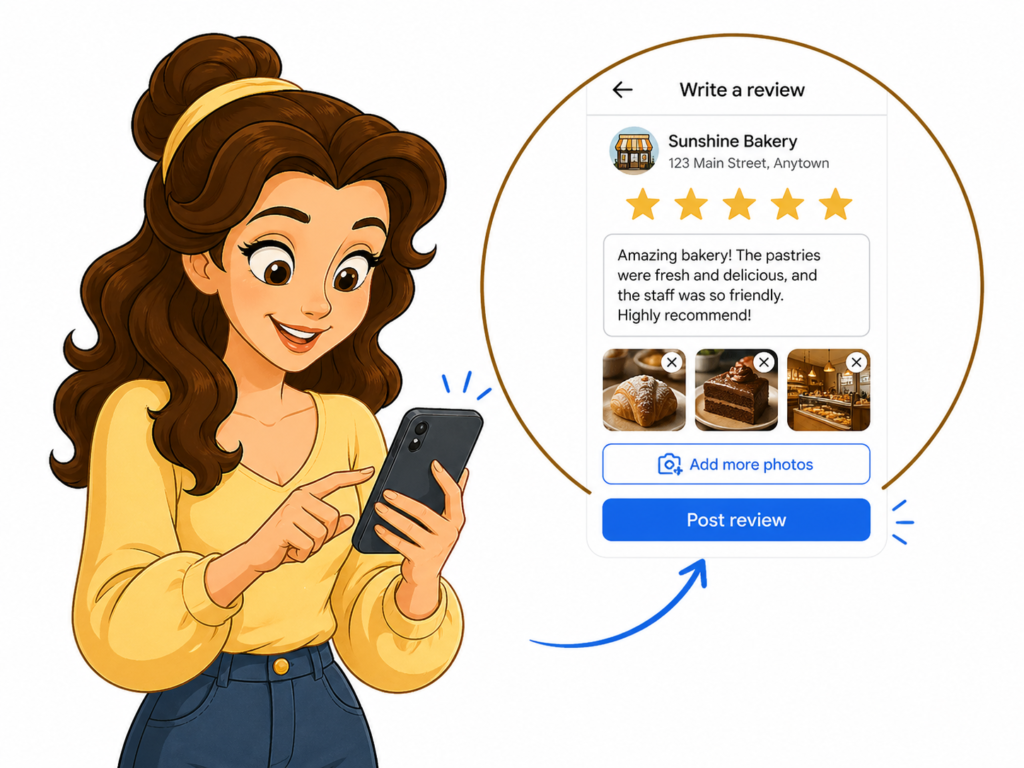
Step 7: Post the review
Once everything looks right, publish the review.
That is it.

Why This Matters for Business Owners
While leaving a review is simple for customers…
Getting reviews consistently is where most businesses struggle.
Many business owners rely on:
- Word of mouth
- Occasional requests
- Hoping customers remember
But the reality is, without a system in place, reviews come in randomly—or not at all.
And since most customers check reviews before choosing a business, this can directly affect visibility, trust, and sales.
That’s why more businesses are starting to focus on structured review management instead of leaving it to chance.
👉 If you want to see how businesses actually generate and manage reviews consistently, this article on Google Review Management Service
How to leave a Google review on your phone
A lot of people leave reviews on mobile.
Google’s Maps help for Android says the process works like this:
- open the Google Maps app
- find the place
- tap to score the place with stars
- under “Share more about your experience,” write the review
- answer any extra prompts if they appear
This is one reason businesses like sending direct review links by text. It makes the whole thing fast and easy on a phone.

What to write in a good Google review
A good review does not need to be long.
In fact, short and real is usually better than long and fake-sounding.
Here are a few simple examples:
For a salon:
“I had a great experience here. The staff was friendly, the place was clean, and I loved how my hair came out.”
For a dentist:
“The team was kind, professional, and made me feel comfortable during my visit. I would recommend this office.”
For a home service business:
“They showed up on time, explained everything clearly, and did solid work. I would use them again.”
The best review is honest, specific, and easy to understand.
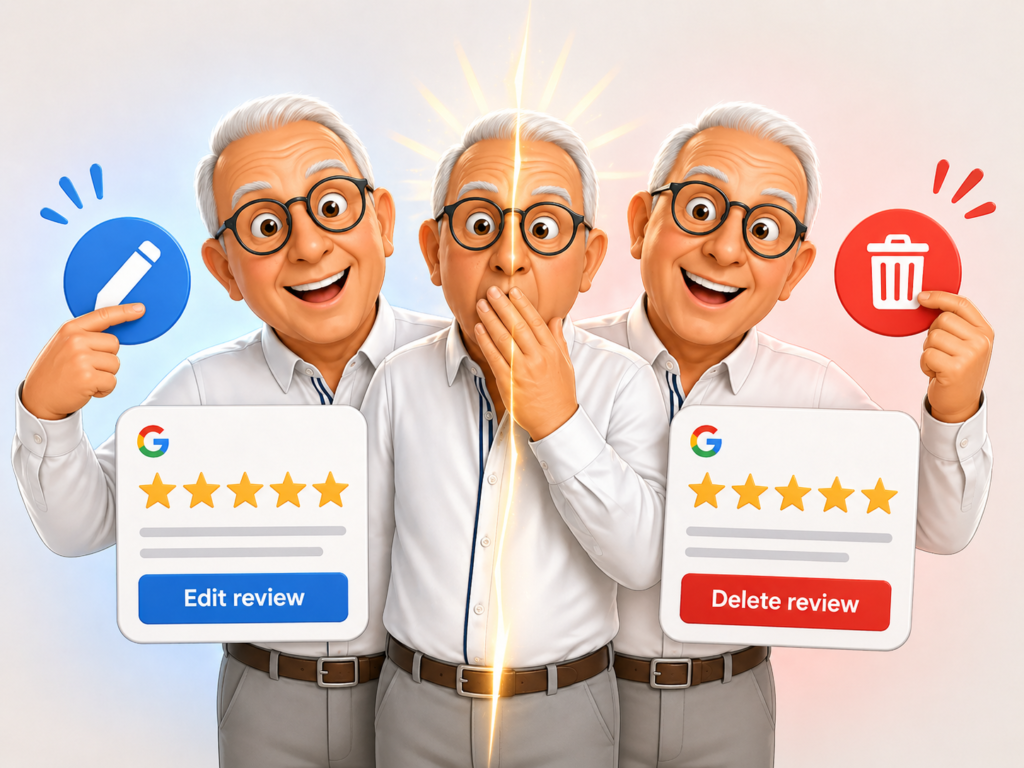
Can you edit or delete a Google review later?
Yes.
Google’s review help says you can add, edit, or delete Google Maps reviews and ratings later.
That means if you want to fix wording, update your experience, or remove the review, you can.
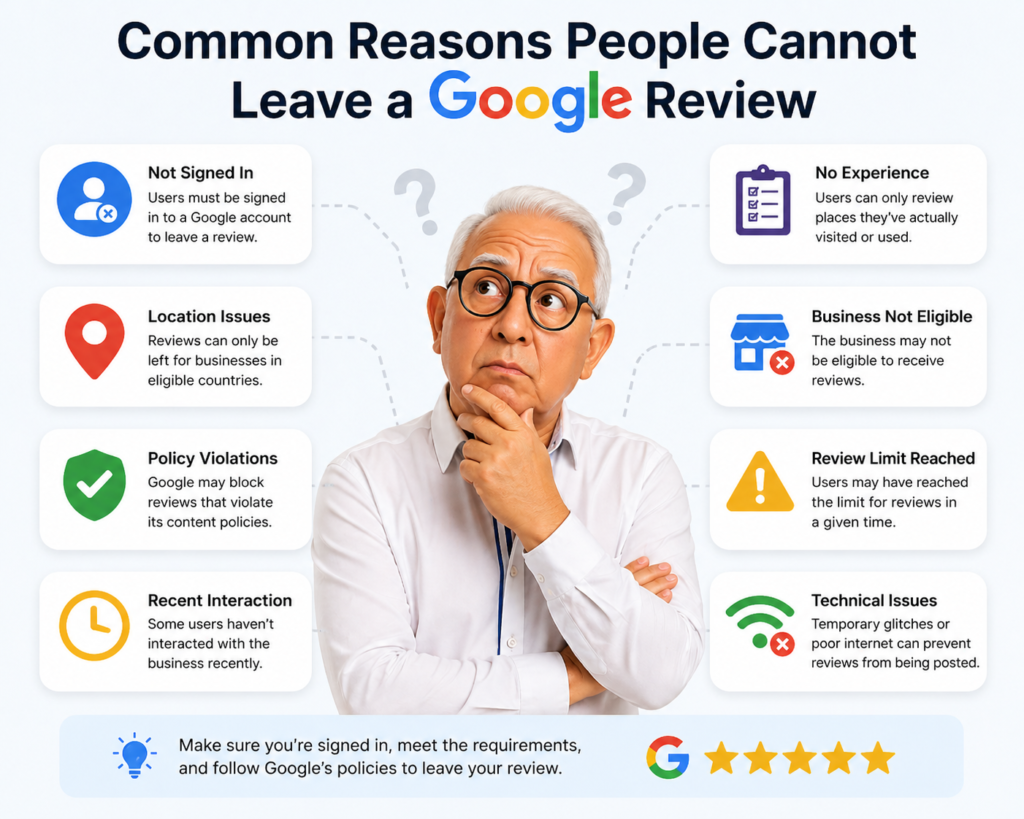
Common reasons people cannot leave a Google review
Sometimes people want to leave a review but run into a problem.
Some common issues are:
- not being signed in
- clicking the wrong listing
- trying to review a place that is hard to find in Maps
- account or policy-related limits
If the business sends a direct Google review link, that usually makes the process easier.

Tips for leaving a better review
If you want your review to be more helpful, do this:
- keep it real
- mention what service you used
- mention timing, staff, or results
- avoid weird all-caps language
- do not make claims you cannot back up
- add photos only if they help
This makes your review more useful to both the business and future customers.

Conclusion
If you want to know how to leave a Google review for a business, the process is simple.
Find the business on Google or Google Maps, click Write a review, choose your stars, add your comments, and post it. Google’s help pages confirm that reviews can be added through Maps and updated later if needed.
For customers, that is a quick way to support a business you liked.
For business owners, it is a reminder that the easier you make the review process, the better chance you have of getting more real reviews.
👉 Learn how to turn reviews into a consistent growth tool:
Google Review Management Service

Related Articles
Latest Articles