Table of Contents
Ever seen something online and thought…
“What is that?”
Or maybe you wanted to copy text from an image. Or find where to buy a product you saw in a photo.
Good news.
Learning how to use Google Lens in Chrome is one of the easiest ways to search smarter — not harder.
And the best part?
It’s already built into Google Chrome.
Let’s break it down in plain, simple steps.
🔍 What Is Google Lens?

Google Lens is a visual search tool created by Google.
Instead of typing words into search, you search using images.
It can:
- Identify objects
- Translate text
- Copy text from images
- Find similar products
- Recognize landmarks
- Scan QR codes
It’s like giving your browser eyes.
🚀 How to Use Google Lens in Chrome (Step-by-Step)
Here’s exactly how to use Google Lens in Chrome on desktop.
🖱 Step 1: Right-Click Any Image
When browsing in Chrome:
- Find an image.
- Right-click on it.
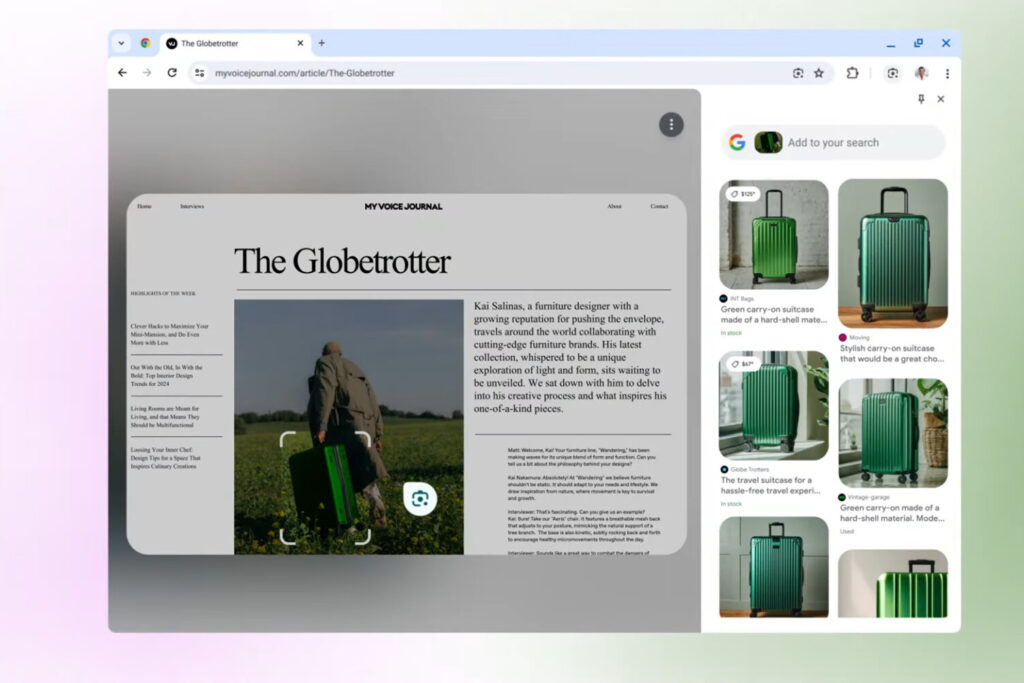
- Select “Search image with Google Lens.”
That’s it.
A panel opens on the right side of your screen.
It shows:
- Similar images
- Related products
- Visual matches
- Source pages
Simple. Fast. Powerful.
📸 Step 2: Search Part of an Image
Sometimes you don’t want the whole picture.
You just want one item.
After clicking “Search image with Google Lens,” you can:
- Drag the selection box
- Highlight only part of the image
For example:
- Just the shoes someone is wearing
- Only the chair in a room
- The logo on a shirt
Google Lens focuses on what you select.
📝 Step 3: Copy Text From an Image

This feature feels like magic.
If an image contains text:
- Open Google Lens.
- Click the Text option.
- Highlight the words.
- Click Copy text.
Now you can paste it anywhere.
No typing needed.
This works great for:
- Notes
- Phone numbers
- Quotes
- Addresses
🌎 Step 4: Translate Text Instantly
If you see text in another language:
- Open Google Lens.
- Select Translate.
- Choose your language.
The text changes right on the screen.
It’s fast and super helpful for:
- Foreign websites
- Travel info
- Product packaging
🛒 Step 5: Find Products and Shop Smarter
See something you like?
Right-click. Use Lens.
It can:
- Show similar products
- Compare prices
- Find stores selling it
If you’re online shopping, this saves time and money.
It’s like having a built-in price checker.
💻 How to Use Google Lens in Chrome on Mobile
On mobile Chrome:
- Tap and hold an image.
- Tap Search with Google Lens.
Or use the camera icon in the search bar.
Same features. Smaller screen.
Still powerful.
🔧 Make Sure Google Lens Is Enabled
Usually, it’s on by default.
If not:
- Update Chrome to the latest version.
- Go to Chrome settings.
- Make sure search features are enabled.
Older versions may not show Lens.
Keep your browser updated.
📈 Why Google Lens Is So Powerful

Visual search is growing fast.
People don’t always know what to type.
Sometimes it’s easier to show Google instead of telling it.
That’s why learning how to use Google Lens in Chrome gives you an edge.
It makes browsing:
- Faster
- Smarter
- More interactive
- More visual
It turns your browser into a smart assistant.
⚠️ Common Problems and Fixes
Don’t See the Option?
Update Chrome.
It’s Not Accurate?
Try selecting a smaller part of the image.
Results Look Wrong?
Check your internet connection.
Most issues are small and easy to fix.
❓ Frequently Asked Questions
1. Is Google Lens free?
Yes, it’s completely free.
2. Do I need to download Google Lens?
No, it’s built into Chrome.
3. Can I use Google Lens without Chrome?
Yes, through the Google app on mobile.
4. Does Google Lens work on all websites?
It works on most images online.
5. Can Google Lens identify plants or animals?
Yes, it can identify many objects, including plants and landmarks.
6. Is Google Lens safe?
Yes, it’s developed by Google and follows standard security practices.

🎯 Final Thoughts
Learning how to use Google Lens in Chrome changes how you search.
Instead of typing guesses…
You search with your eyes.
Right-click. Select. Discover.
That’s it.
Once you start using it, you’ll wonder how you browsed without it.
Related Articles
The Best Way to Request Google Reviews From Customers Fast
How to Use Google Lens on Laptop (Easy Beginner Guide)
How to Use Google Lens on iPhone (The Easy Beginner’s Guide)
Latest Articles