Table of Contents
Just got your new internet box from T-Mobile?
You open it up. There’s a sleek gateway device. A power cord. Maybe a SIM card already inside.
And now you’re thinking…
“Okay… what do I do next?”
Don’t worry. Learning how to set up home internet T Mobile is easier than you think. No drilling. No cable guy. No stress.
Let’s walk through it together. Simple. Clear. Real.
📦 What Comes in the T-Mobile Home Internet Box?

Inside the box, you’ll usually find:
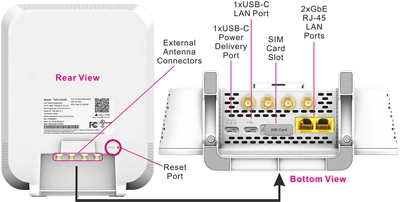
- T-Mobile 5G Gateway (modem + router in one)
- Power adapter
- Quick start guide
- SIM card (already installed in most cases)
That’s it.
This is not traditional cable internet. It uses a 5G cellular signal, like your phone.
That’s why setup is simple.
🔌 Step 1: Pick the Best Spot in Your Home
Before you plug anything in, stop.
Location matters.
Because this runs on a 5G signal, your gateway needs good signal strength.
Here’s what to do:
- Place it near a window
- Put it high (on a shelf or table)
- Avoid metal objects
- Keep it away from microwaves or thick concrete walls
If your signal is weak, your internet will be slow.
Strong signal = better speed.
⚡ Step 2: Plug It In and Power It On
Now the easy part.
- Plug the power adapter into the gateway.
- Plug it into a wall outlet.
- Press the power button (if needed).
Wait about 2–5 minutes.
The screen or lights will show signal bars.
More bars = better connection.
If you see at least 3 bars, you’re in good shape.
📱 Step 3: Download the T-Mobile Internet App
To finish setup, download the official app:
- Available on Apple App Store
- Available on Google Play
Search for T-Mobile Internet.
Open the app and follow the steps:
- Create or log into your T-Mobile ID
- Confirm your gateway
- Set up your WiFi name (SSID)
- Create a secure password
This is where you personalize your network.
🌐 Step 4: Connect Your Devices

Now grab your phone, laptop, smart TV, or tablet.
- Open WiFi settings.
- Find your new network name.
- Enter your password.
Boom. You’re online.
You can connect multiple devices just like regular home WiFi.
🔒 Step 5: Secure and Optimize Your Network
Security matters.
Inside the T-Mobile Internet app, you can:
- Change WiFi password
- Rename your network
- See connected devices
- Pause WiFi for certain devices
- Check signal strength
Make sure:
- You use a strong password (mix letters and numbers)
- You don’t share your password publicly
- You monitor unknown devices
This keeps your home network safe.
🚀 How to Improve Speed and Signal
Sometimes speeds feel slow. Don’t panic.
Try these fixes:
Move the Gateway
Even moving it a few feet can improve signal.
Rotate the Device
Turn it slightly and check signal bars again.
Avoid Crowded Areas
Keep it away from other electronics.
Check Peak Hours
Even 5G can slow down during busy times.
You can test speed using tools like Speedtest by Ookla.
📶 How T-Mobile Home Internet Works (Quick Breakdown)
Traditional internet uses:
- Cable lines
- Fiber optic cables
- Phone lines
T-Mobile uses:
- 4G LTE
- 5G wireless towers
Your gateway picks up the signal just like your smartphone.
That’s why there’s:
- No installation appointment
- No drilling holes
- No complicated wiring
It’s plug-and-play internet.
🛠 Common Problems and Easy Fixes
No Signal Bars?
Move the gateway near a window.
Devices Won’t Connect?
Double-check the password.
Internet Keeps Dropping?
Restart the gateway. Wait 2 minutes.
Slow Streaming?
Reduce connected devices or move gateway.
Most problems are fixed with simple repositioning.

❓ Frequently Asked Questions
1. How long does it take to set up home internet T Mobile?
Usually 10–20 minutes.
2. Do I need a technician?
No. It’s self-install.
3. Can I move the gateway anytime?
Yes. Just unplug and reposition it.
4. Does weather affect signal?
Heavy storms can sometimes reduce speed slightly.
5. How many devices can connect?
Dozens, but speed depends on usage.
6. Is T-Mobile home internet good for gaming?
It works for casual gaming, but latency may vary.
🎯 Final Thoughts
Learning how to set up home internet T Mobile is simple.
It’s really just:
- Find a good spot
- Plug it in
- Use the app
- Connect your devices
No wires running through your walls. No waiting days for installation.
Just fast, wireless home internet — ready in minutes.
And once it’s running? You’ll wonder why all internet setups aren’t this easy.
Related Articles
What Is a VPN? A Beginner-Friendly Guide to Online Privacy
How T-Mobile Home Internet and Mobile Connectivity Are Transforming Modern Web Design
How Keyword Research, Mobile UX & Reviews Fuel Business Growth
Related Articles