
Let me say this first.
If you’re here trying to figure out how to create a website on Squarespace, you’re already doing something right.
Most people talk about ideas forever. They never build.
A website forces you to stop talking and start showing.
Squarespace is my obsession right now because it removes excuses. You don’t need to code. You don’t need a design degree. You just need clarity, a little patience, and the willingness to make decisions.
So let’s break this down clean and simple.
What Squarespace Actually Is
Squarespace is an all-in-one platform. Hosting, templates, pages, blogs, contact forms, ecommerce — it’s all baked in. You’re not duct-taping plugins together or chasing updates.
That’s why people use it.
If you want to know how to create a website on Squarespace, you gotta understand this first:
Squarespace is built for structure. Not chaos.
It rewards people who think clearly.
Step 1: Know What the Website Is For
Before you touch a template, answer this:
- Is this a personal brand?
- A business?
- A portfolio?
- A blog?
- A landing page to collect emails?
If you skip this step, your site is going to feel confused. And confused sites don’t convert.
Squarespace gives you tools, but you decide the direction.
Step 2: Choose a Template (Don’t Overthink It)
This is where people get stuck.
Here’s the truth:
All Squarespace templates are good. The difference is layout, not quality.
Pick one that:
- Matches your vibe
- Has clean typography
- Doesn’t feel cluttered
You can change colors, fonts, and layout later. The goal right now is momentum.
When people ask me how to create a website on Squarespace, this is where I tell them: pick and move.
Step 3: Set Up Your Pages
At minimum, your site should have:
- Home
- About
- Services or Work
- Contact
That’s it. You don’t need ten pages. You need clarity.
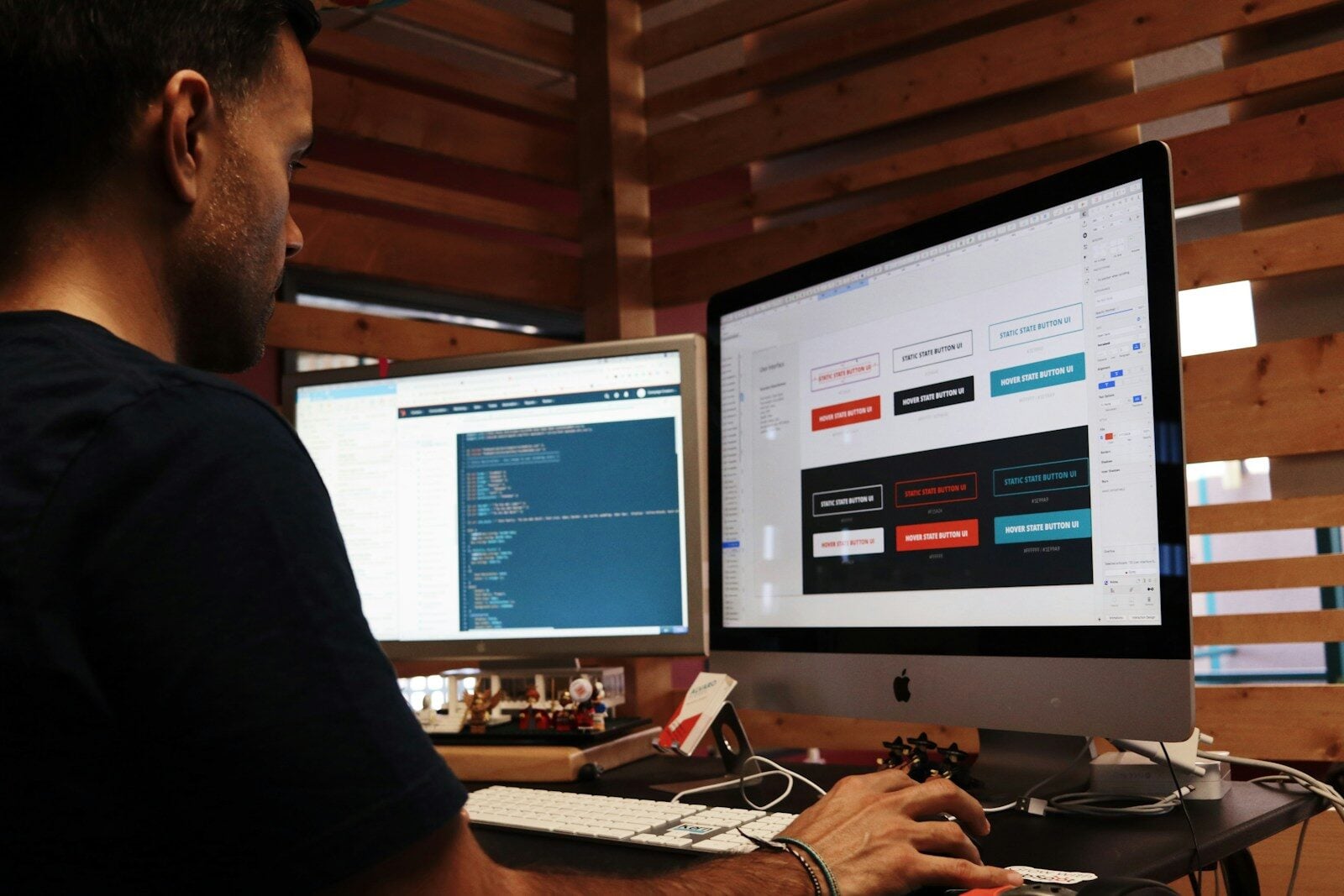
Squarespace’s page editor is drag-and-drop. Sections, blocks, text, images — all visual. No guessing.
This is where Squarespace shines. You can see what you’re doing in real time.
Step 4: Write Like a Human
This is where most websites fail.
People start sounding corporate. Stiff. Fake.
Don’t do that.
Write how you talk. Explain what you do. Who it’s for. Why it matters.
If you’re learning how to create a website on Squarespace, understand this:
Design gets attention. Words keep it.
Step 5: Customize the Design (Less Is More)
Squarespace gives you controls for:
- Fonts
- Colors
- Spacing
- Buttons
- Images
You don’t need all of them.
Stick to:
- One or two fonts
- A tight color palette
- Plenty of white space
Brooklyn rule: if it feels crowded, it is.
Step 6: Mobile Matters
Squarespace automatically makes your site responsive. But you still need to check it.
Most people will see your site on their phone first.
If it’s hard to read, too busy, or awkward to scroll — fix it.
A clean mobile site separates amateurs from people who care.
Step 7: Add the Essentials
Before you launch, make sure you’ve got:
- A contact form
- Social links (if they matter)
- SEO titles and descriptions
- A custom domain
Squarespace walks you through all of this. That’s part of why it’s so powerful.
This is where how to create a website on Squarespace turns into how to look legit online.
Step 8: Hit Publish (Stop Waiting)
This is the hardest part for people.
They want perfect.
Perfect never comes.
Publish the site. Let it breathe. Improve it over time.
Squarespace makes updates easy. You’re not locked in.
The website isn’t the end. It’s the beginning.
Why Squarespace Works
Squarespace works because it lets you focus on:
- Message
- Presentation
- Consistency
Not code. Not plugins. Not tech stress.
If you’ve been asking yourself how to create a website on Squarespace, the real answer is simple:
Start. Build. Adjust. Repeat.
- Google Review Removal Service That Protects Your Reputation and Builds Trust
- Google Review Management Agency That Helps Businesses Build Trust and Get More Customers
- How to Get New Patients in New York With Google Reviews
- How Accepted Insurance Plans Can Strengthen Medical Local SEO
- Brooklyn Nursing Home Marketing in 2026: How to Turn Google Searches Into More Admissions