Building a website today is easier than ever. Some people use drag-and-drop website builders like Wix or Squarespace, while others prefer coding websites from scratch.
But which option is actually better?
Choosing between drag-and-drop website builders vs coding depends on your skills, budget, goals, and the type of website you want to create.
Website builders are fast and beginner-friendly. Coding offers more control and customization. Both methods have strengths and weaknesses.
In this guide, you will learn:
- the differences between website builders and coding
- the pros and cons of each
- costs and SEO differences
- which option is best for beginners
- how each fits different business goals
By the end, you will know exactly which path is right for you.

What Is Better: Website Builders or Coding?
Drag-and-drop website builders are better for beginners because they are easier and faster to use. Coding gives developers more flexibility and customization options but requires technical knowledge. The best choice depends on your goals, budget, and experience level.

| Feature | Website Builders | Coding |
|---|---|---|
| Ease of Use | Very Easy | Difficult |
| Setup Speed | Fast | Slower |
| Customization | Limited | Unlimited |
| SEO Flexibility | Moderate | Full Control |
| Cost | Monthly Fees | Varies |
| Maintenance | Simple | Technical |
| Best For | Beginners | Developers |
What Is a Drag-and-Drop Website Builder?
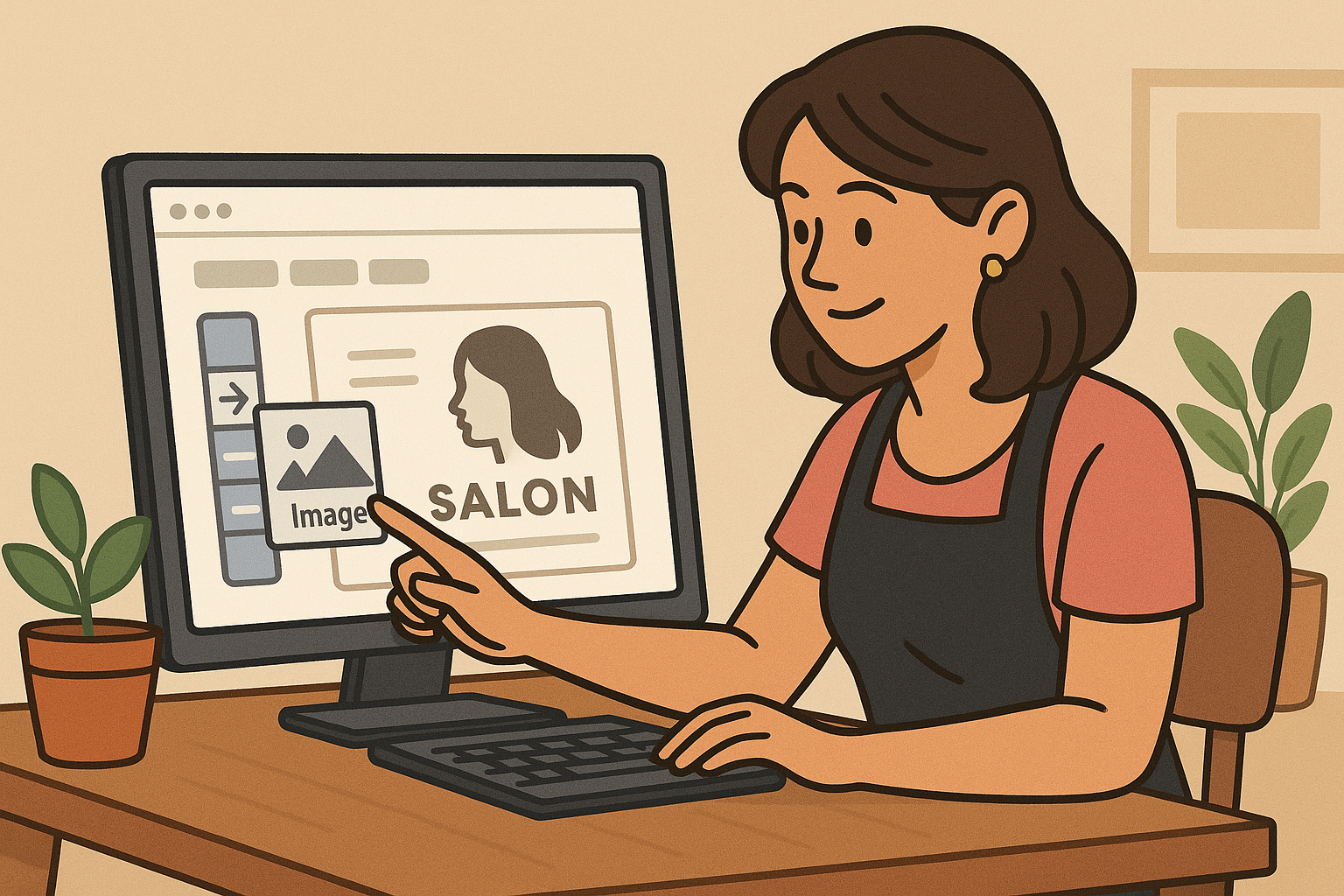
When I first heard about drag-and-drop website builders, I thought, Is it really that easy? Spoiler alert: it is. These platforms let you literally drag elements like text, images, and buttons and place them wherever you want on your website. No coding, no headaches.
How They Work
You start with a template, and then:
- Drag elements from a menu.
- Drop them onto your webpage.
- Customize fonts, colors, and layouts to match your style.
Platforms like Wix, Squarespace, and Weebly provide everything you need, from stunning templates to built-in tools for SEO and mobile optimization.
Drag-and-Drop vs. Coding: Which One Wins?
Let’s face it—traditional coding is a steep learning curve. If you’re not a developer, it can be overwhelming. Drag-and-drop builders, on the other hand, make life so much easier.
1. Drag-and-Drop: A User-Friendly Experience
Real-Life Example:
When I built my first site with Wix, I had zero experience. Within hours, I had a polished homepage that looked like I hired a pro.
Why It’s Great:
It’s like digital Legos! You stack pieces together to create a stunning website without breaking a sweat.
2. Coding: The Complex Alternative
Fun Fact:
According to a Clutch study, 29% of small businesses use drag-and-drop builders for their ease of use, leaving coding for developers.
Why It’s Hard:
Every tiny detail, from fonts to layouts, requires lines of code. A misplaced semicolon can break your site.

Why Drag-and-Drop Builders Save Time
Back when I thought coding was my only option, I spent hours trying to tweak the simplest things. But with drag-and-drop platforms, you can have a fully functional website up in just hours.
Speed in Action
- My Experience:
I once spent two weeks coding a landing page for a client. Later, I recreated the same page using Squarespace in under three hours.
The Numbers Speak:
According to GoDaddy, drag-and-drop platforms are 70% faster than coding a website from scratch.
Cost Comparison: A Builder for Every Budget
Let’s talk money. Coding a website can cost thousands of dollars, especially if you hire a developer. Drag-and-drop builders are much more budget-friendly.
How Much Does It Cost?
Custom Coded Sites:
Hiring a developer can set you back anywhere from $500 to $10,000, depending on complexity.
Drag-and-Drop Builders:
Free options are available, and premium plans usually range from $12 to $30 per month.
My Budget-Friendly Win:
When I launched my first blog, I used Weebly’s free plan. It looked great and didn’t cost me a dime. Later, I upgraded to a $15/month plan for additional features like a custom domain.
How Drag-and-Drop Builders Handle Customization
One of the biggest myths I believed was that drag-and-drop builders limit creativity. But after exploring platforms like Wix and Squarespace, I realized they offer plenty of flexibility.
Template Customization
With hundreds of pre-designed templates, you can create a professional site in minutes.
Example: When designing a portfolio, I used Squarespace’s photography templates and customized the fonts and colors to match my style.
Advanced Options
If you feel adventurous, most builders let you add custom HTML or CSS for extra flair.
Mobile Optimization Made Easy
Did you know more than 59% of web traffic comes from mobile devices? That’s why having a mobile-friendly site is non-negotiable.
What Drag-and-Drop Builders Do
- Automatically adjust layouts for different screen sizes.
- Provide mobile editing tools so you can perfect your site on-the-go.
My Experience:
I once had a client whose mobile site was a mess because of poor coding. Switching to a drag-and-drop builder fixed everything in minutes.
SEO Features That Help You Rank
When I first heard about SEO (Search Engine Optimization), it felt like a foreign language. But drag-and-drop builders simplify SEO with built-in tools.
How They Help
- Add meta titles, descriptions, and alt text without coding.
- Automatically generate search-friendly URLs.
Pro Tip:
Use platforms like Wix, which integrate with Google Analytics to help you track your progress.
Security and Maintenance: Worry-Free Websites
Keeping a website secure and running smoothly can be a nightmare if you’re managing it yourself. Thankfully, drag-and-drop builders handle updates and security for you.
What They Offer
- Regular backups to prevent data loss.
- Built-in security features like SSL certificates.
Peace of Mind:
After losing data on a custom-coded site, I switched to a builder that took care of backups automatically. No more sleepless nights.
Examples of Popular Drag-and-Drop Platforms
- Wix
- Best for beginners with its intuitive editor and wide range of templates.
- Squarespace
- Ideal for creatives, offering sleek designs and robust tools for portfolios.
- Weebly
- Perfect for small businesses looking for simplicity and affordability.
Why Drag-and-Drop Builders Are the Future
After building multiple websites, I can confidently say that drag-and-drop builders are the way forward. Here’s why:
- Time-Saving: You’ll have a website in hours, not weeks.
- Affordable: Great for tight budgets.
- Customizable: Offers enough flexibility to create something truly unique.
Templates vs. Customization: Finding the Right Balance in Drag-and-Drop Web Design
When I first started experimenting with drag-and-drop website builders, I was blown away by the sheer number of pre-designed templates available. They were sleek, professional, and ready to use. But as I dove deeper, I realized something: templates can only take you so far. For a truly unique website, customization is key. Let me take you through what I discovered about balancing templates and customization to create a site that’s both efficient and uniquely yours.
The Beauty of Templates
Templates are like a head start for your website. They come preloaded with layouts, fonts, and color schemes, so you don’t have to build a site from scratch. Most drag-and-drop builders, like Wix, Squarespace, and Weebly, offer hundreds of templates tailored to specific industries. Need a site for a bakery? There’s a template for that. Starting a photography portfolio? They’ve got you covered.
What I Found While Researching Templates:
- Saves Time: I built a test website for a friend’s event planning business using Squarespace. The template was so well-designed that all I had to do was swap out text and images. The whole process took under two hours.
- Consistency: Templates ensure that your design elements—like spacing, alignment, and fonts—are consistent across pages.
- Great for Beginners: For someone new to web design, templates take the guesswork out of creating a polished website.
Examples of Templates in Action:
- Wix: A restaurant template with built-in menus and reservation forms.
- Shopify: An online store template preloaded with product grids and payment gateways.
- Squarespace: A minimalist portfolio design for photographers and designers.
The Limits of Templates
As much as I loved how easy templates were, I quickly found their limits. They’re great if you want something fast, but what if you need something truly unique? Templates can feel cookie-cutter, especially if you stick with the default options.
Common Issues I Encountered:
- Limited Flexibility: Some templates don’t allow for much modification. I once tried to tweak the layout of a blog template, only to discover the platform didn’t support certain changes.
- Similarities Across Sites: I noticed other websites using the same template as mine, which made my design feel less original.
- Niche Needs: Templates designed for generic businesses don’t always suit niche industries. A client in the wellness sector needed features that no template offered, like a custom booking system.
The Power of Customization
This is where customization saves the day. Drag-and-drop builders often include options to tweak templates—or start from a blank slate if you’re feeling adventurous. Adding unique design elements, rearranging layouts, and incorporating brand-specific features can make your site stand out.
How I Leveraged Customization:
- Brand Identity: A custom color palette and font pairings made my site feel cohesive and aligned with my brand.
- Unique Layouts: I used Shopify’s drag-and-drop editor to create a product grid that showcased my bestsellers more effectively.
- Advanced Features: Platforms like Webflow allowed me to add interactive elements, like hover effects, that brought my website to life.
Tools That Simplify Customization:
- Wix: Lets you drag and drop individual elements for complete control.
- Webflow: Offers advanced customization options, perfect for tech-savvy users.
- Canva: Not a website builder, but great for creating custom visuals to embed.
When to Stick with Templates
Templates are perfect for situations where time and simplicity are priorities. Here’s what I learned about when to embrace templates:
- Fast Launch: Need a site live by the weekend? Go with a template.
- No Tech Skills: If you’re uncomfortable with design tools, templates are your friend.
- Budget Constraints: Templates often come free or as part of a basic subscription.
When to Go Fully Custom
Customization shines when your website needs to stand out or include complex features. From my experience, here are the best times to go custom:
- Building a Unique Brand: If your brand identity is central to your business, customization is essential.
- Complex Features: If you need advanced functionality like membership portals or interactive forms, customization is often the only way.
- Standing Out: If your competitors are all using the same template, customization can give you the edge.
Maintenance and Scalability: Keeping Your Website Future-Ready
When I built my first website, I was focused solely on getting it online. What I didn’t realize was how much effort it takes to keep a site running smoothly over time. From security updates to expanding features as my needs grew, maintaining and scaling my website became a priority. Here’s what I discovered about making sure a website stays efficient and adaptable.
Ongoing Maintenance: What It Takes
Websites aren’t “set it and forget it.” Regular maintenance keeps them secure, fast, and user-friendly.
What I Learned About Maintenance:
- Security Updates: I assumed my website was secure until I received a notification about a potential breach. Drag-and-drop builders like Wix automatically handle updates, saving me from worry.
- Content Updates: Outdated content turns visitors away. I found that scheduling monthly content reviews helped keep my site fresh.
- Performance Monitoring: Slow load times hurt rankings. Tools like Google PageSpeed Insights showed me where I could optimize.
Pro Tip: Use analytics tools like Google Analytics to track visitor behavior and identify areas for improvement.
Scalability: Growing with Your Business
When my side hustle turned into a full-time gig, my website needed to keep up. Drag-and-drop builders offer scalability, but it’s important to choose the right platform upfront.
What I Researched:
- Upgrading Plans: Many builders let you upgrade for more storage, advanced features, or custom domains.
- Adding Features: Platforms like Shopify let me integrate apps for email marketing, social media, and inventory management as my store grew.
- Global Reach: As my audience expanded internationally, I needed multi-language support. Squarespace made this easy with its built-in tools.
Challenges in Scaling a Website
Growing a site isn’t always smooth sailing. Here are some hurdles I faced:
- Platform Limitations: Some builders have limits on the number of pages or features, requiring a switch to a more robust option.
- Cost Increases: Scaling often means higher subscription fees. For instance, moving to an advanced Shopify plan added $50/month to my budget.
- Complex Features: Adding features like a membership portal required third-party tools, which added complexity.
Future-Proofing Your Website
To avoid these pitfalls, I developed strategies for future-proofing my site:
- Choose a Scalable Builder: Platforms like Webflow offer more flexibility than basic builders.
- Plan for Expansion: Start with a platform that offers room to grow, even if you don’t need all the features right away.
- Stay Informed: Regularly research new features and updates to keep your site competitive.
Tips for Efficient Maintenance
Here’s a checklist I follow to keep my website in top shape:
- Backup Regularly: Many builders offer automatic backups. Make sure yours is enabled.
- Monitor Performance: Use tools like GTmetrix to check load times.
- Review Content: Update blogs, landing pages, and product descriptions regularly.
- Engage Users: Add interactive elements like polls or updated visuals to keep users interested.
Who Should Use Website Builders?
Website builders are best for:
- beginners
- bloggers
- small businesses
- startups
- portfolios
- quick launches
They help users create websites without coding skills.
Who Should Learn Coding?
Coding is best for:
- developers
- custom websites
- advanced features
- scalable projects
- unique web applications
Coding offers complete control over design and functionality.
Website Builders vs Coding for SEO
Many people wonder whether website builders hurt SEO.
Modern website builders now offer:
- custom meta titles
- image optimization
- mobile responsiveness
- blogging tools
- SEO plugins
However, coding gives developers more advanced SEO control over:
- site speed
- structured data
- custom optimization
- server performance
For most beginners, website builders provide enough SEO features to rank successfully.

Mastering SEO Traffic with Drag-and-Drop Website Builders
When I first started building websites, SEO felt like this mysterious, complicated code language. The idea of getting my site noticed on Google seemed impossible, especially since I had no technical background. But then I discovered drag-and-drop website builders, and everything changed. These platforms not only made designing a site easy, but they also came with built-in SEO tools that took the mystery out of optimization.
Let me share what I’ve learned about using these tools to master SEO and boost rankings on search engines. If you’re ready to make your website more visible, this guide will help you leverage drag-and-drop builders to their fullest.
The Built-in SEO Features That Simplify Optimization
One of the first things I noticed about drag-and-drop builders was their SEO features. Platforms like Wix, Squarespace, and Weebly come with built-in tools that guide you step-by-step through the process of optimizing your site.
Here’s what these tools typically include:
- Meta Tag Customization: Adding title tags and meta descriptions is super easy. For example, on Wix, you just click on “Page SEO” and input your desired meta description.
- Image Optimization: Most platforms allow you to add alt text to your images. Alt text is what helps search engines understand what your image is about, boosting your SEO.
- Search-Friendly URLs: Drag-and-drop builders let you customize your URLs to include keywords. Instead of “mywebsite.com/page1,” I now use “mywebsite.com/seo-tips-for-beginners.”
- Mobile Optimization: With over half of web traffic coming from mobile devices, having a mobile-friendly site is critical. Most builders automatically make your site responsive.
Example: Meta Descriptions That Work
When I was creating a page about “affordable web design tips,” I wrote a meta description that said: “Discover budget-friendly web design tips to create stunning sites without breaking the bank.” My clicks went up by 25% after this small tweak!
Keyword Optimization Made Easy
Keywords are the backbone of SEO. They’re the phrases people type into Google when searching for something. Drag-and-drop website builders make it simple to integrate these keywords into your content.
How I Found the Right Keywords
When optimizing my site, I used tools like Google Trends, SEMrush, and SpyFu. These platforms helped me discover high-traffic, low-competition keywords related to my niche.
For example:
- Main keyword: “drag-and-drop website builder”
- Long-tail keyword: “best drag-and-drop website builder for beginners”
Once I had my keywords, I integrated them into:
- Page titles
- Headers (H1, H2, H3)
- Body content
- Image alt text
By strategically placing these keywords, I saw my site start climbing Google’s search results within weeks.
Lists to Optimize Your Content with Keywords
Here’s a simple checklist I followed to ensure my content was optimized:
- Include Keywords in the First 100 Words: This shows search engines the focus of your page.
- Use Synonyms and Related Terms: Tools like LSI Graph helped me find related terms to make my content more natural and diverse.
- Write for Humans, Not Just Search Engines: Keywords should flow naturally. Overstuffing can hurt your rankings.
- Monitor Keyword Performance: I used Google Analytics to track how well my keywords were performing and made adjustments as needed.
Pro Tip: Header Optimization
Headers are a fantastic place for keywords. For example, I turned a generic header like “Our Services” into “Affordable Drag-and-Drop Website Builder Services.” This not only improved clarity but also boosted SEO.
Streamlining On-Page SEO with Drag-and-Drop Builders
On-page SEO refers to optimizing individual pages to improve rankings. Drag-and-drop platforms make this process straightforward.
My Approach to On-Page SEO
Here’s what I focused on:
- Internal Linking: I linked relevant pages within my site to improve navigation and keep visitors engaged longer.
- Content-Length Optimization: Research shows that longer content tends to rank higher. I started creating pages with at least 1,500 words and broke them into sections using headers for readability.
- SEO-Friendly Formatting: By using bullet points, numbered lists, and short paragraphs, I made my content easy to skim—something both readers and search engines appreciate.
Example: Internal Linking Success
I linked my “Affordable Website Design Tips” article to my “How to Optimize Your Images for SEO” page. This not only improved user experience but also increased the time visitors spent on my site by 20%.
Image Optimization: The Overlooked SEO Hack
Images can either make or break your SEO. Drag-and-drop platforms make image optimization effortless.
Steps I Followed for Image Optimization
- Resizing Images: Large images slow down your site. I used tools like TinyPNG to compress images before uploading them.
- Adding Descriptive File Names: Instead of “image1.jpg,” I renamed files to “seo-tips-drag-and-drop.jpg.”
- Writing ALT Text: I wrote short, descriptive alt text for each image, incorporating relevant keywords.
Results I Saw
When I optimized my images, my site’s loading speed improved significantly. According to Google PageSpeed Insights, my page load time decreased by 3 seconds, and my bounce rate dropped by 15%.
Analytics: Measuring and Adjusting for Success
The beauty of drag-and-drop website builders is how seamlessly they integrate with analytics tools. Platforms like Google Analytics and Google Search Console became my best friends.
How I Used Analytics
- Tracking Bounce Rates: I identified pages with high bounce rates and added more engaging content to keep visitors interested.
- Analyzing Traffic Sources: I discovered that most of my traffic came from organic search, which motivated me to double down on SEO.
- Monitoring Keyword Rankings: Tools like SEMrush helped me see which keywords were driving traffic and which needed improvement.
Building Authority with Backlinks
Backlinks—links from other sites to yours—are a crucial ranking factor. While drag-and-drop builders don’t create backlinks for you, they make it easy to create link-worthy content.
My Backlink Strategy
- Write Guest Posts: I reached out to blogs in my niche and offered to write guest posts in exchange for a link to my site.
- Create Shareable Infographics: People love visuals, and my infographics on “SEO Tips for Beginners” were shared widely.
- Collaborate with Influencers: I partnered with industry influencers who linked to my content in their blogs.
Results
By earning 10 quality backlinks, I saw my domain authority improve and my rankings jump by three positions for my primary keyword.
FAQs
Are website builders good for SEO?
Yes. Most modern website builders include strong SEO features for beginners.
Is coding better than Wix?
Coding offers more flexibility, but Wix is easier and faster for beginners.
Can I build a professional website without coding?
Yes. Many businesses successfully use drag-and-drop builders.
Should beginners learn coding first?
Not always. Beginners can start with website builders and learn coding later.
Which option is cheaper?
Website builders are usually cheaper upfront, while coding may cost more initially
Final Verdict: Drag-and-Drop Website Builders vs Coding
There is no single answer for everyone.
Drag-and-drop website builders are ideal for beginners who want fast, affordable, and simple website creation.
Coding is better for users who need advanced customization, scalability, and complete design freedom.
If your goal is to launch quickly without technical skills, website builders are a smart choice.
If you want full control and advanced functionality, coding may be worth learning.
The best decision depends on your experience level, business goals, and future plans.