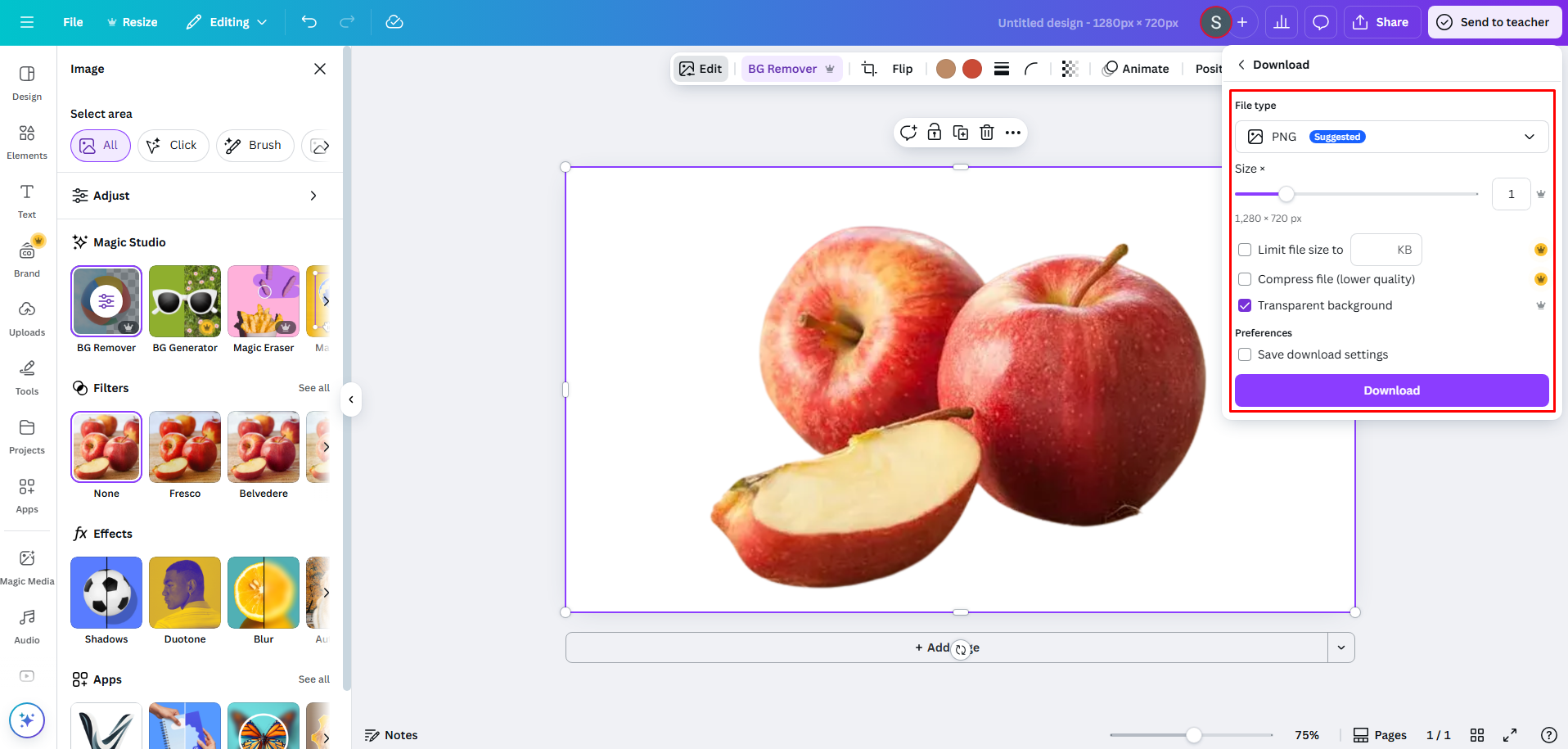
If you’re working on designs, knowing how to remove background in Canva is one of the most useful skills you can learn. It helps your images look clean, professional, and ready for websites, ads, or social media.
Why Background Removal Is Important
Removing the background allows you to:
- Focus on the subject
- Create cleaner designs
- Use images in different layouts
When You Should Use It
You should remove backgrounds when:
- Creating product images
- Designing ads
- Building websites
Step-by-Step Guide: How to Remove Background in Canva
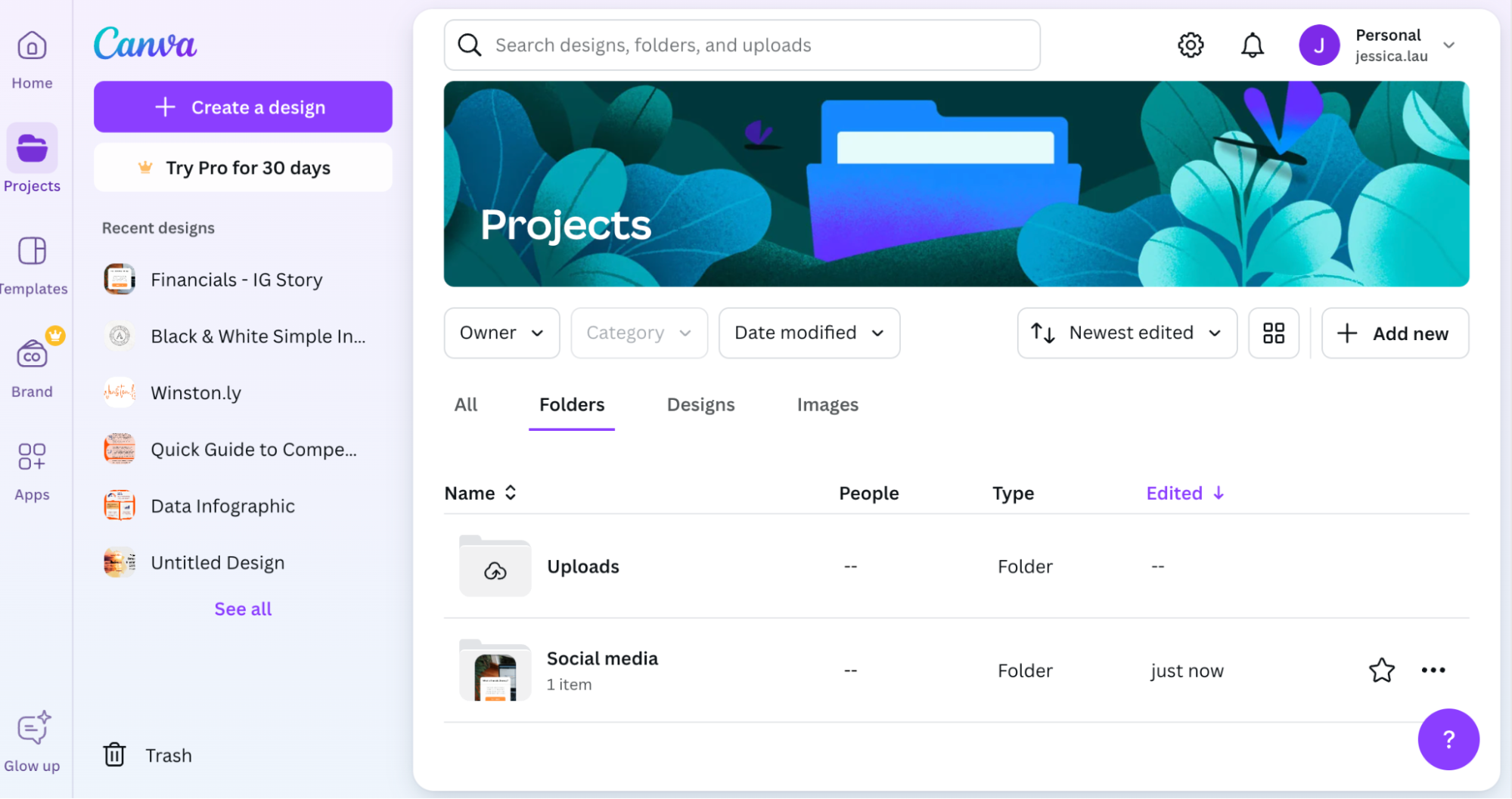
Step 1: Upload Your Image
- Open Canva
- Click Uploads
- Add your image
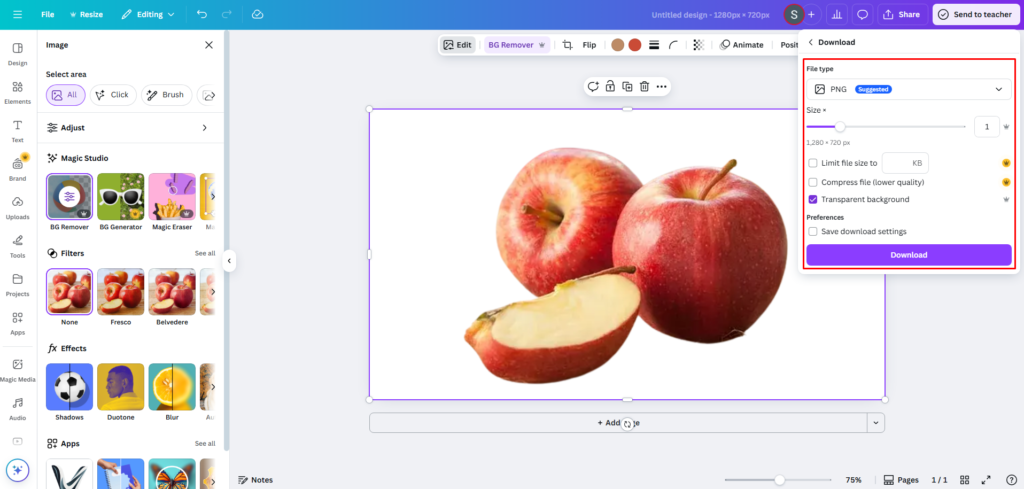
Step 2: Use the Background Remover Tool
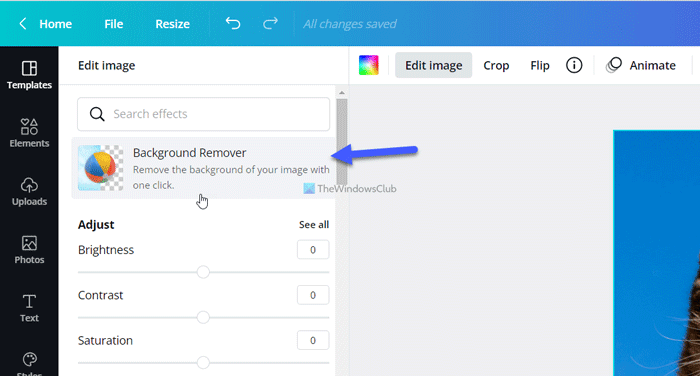
- Click on your image
- Go to Edit Image
- Click Background Remover
- Wait a few seconds
Canva will automatically remove the background.
Step 3: Adjust and Edit the Image
After removing the background:
- Resize the image
- Move it around
- Add effects if needed
Editing After Removing the Background
Fix Edges and Details
Sometimes the edges are not perfect. Use:
- Erase tool to remove extra parts
- Restore tool to bring back details
Add New Backgrounds
You can now place your image on:
- Solid colors
- Gradients
- Photos
This helps create professional designs.
Tips for Best Results
Use High-Quality Images
Clear images work better. Blurry images may not cut cleanly.
Avoid Busy Backgrounds
Simple backgrounds are easier to remove.
Canva Free vs Pro Feature
Is Background Remover Free?
The background remover tool is mainly available in Canva Pro.
Free users may have limited access.
Common Problems and Fixes
Blurry Edges
Fix by zooming in and using the erase/restore tools.
Missing Parts of Image
Use the restore brush to bring back removed areas.
Creative Ways to Use Background Removal
Social Media Posts
Create clean, eye-catching designs.
Website Design
Use cut-out images for landing pages and product sections.
FAQs
1. Is Canva background remover easy to use?
Yes, it works with one click.
2. Do I need Canva Pro?
Yes, for full access to the tool.
3. Can I fix mistakes after removing the background?
Yes, with erase and restore tools.
4. Does it work on all images?
It works best on clear images with simple backgrounds.
5. Can I add a new background after?
Yes, you can choose any background you want.
6. Is it good for beginners?
Yes, it’s one of the easiest tools available.
Conclusion
Learning how to remove background in Canva is a simple but powerful skill. It helps you create clean, professional designs in just a few clicks.
With practice, you’ll be able to edit images quickly and use them for websites, ads, and social media.
Start simple, keep practicing, and your designs will improve fast.

Related Articles
Latest Articles
-

Google Review Removal Service That Protects Your Reputation and Builds Trust
Can Negative Google Reviews Damage a Healthcare Organization? A sudden wave of negative Google reviews can seriously damage the reputation of a nursing home or medical practice. Families researching nursing homes often compare ratings, recent reviews, management responses, photographs, and overall review activity before scheduling a tour. Patients may perform the same research before choosing…
-

Google Review Management Agency That Helps Businesses Build Trust and Get More Customers
People trust Google reviews before they trust advertisements. Before contacting your business, potential customers usually search your company online and ask themselves one important question: “Can I trust this business?” That answer often comes from your reviews. Customers look at: If your business has weak reviews, outdated feedback, or unanswered complaints, customers may choose a…
-

How to Get New Patients in New York With Google Reviews
Your next patient in New York may decide whether to call your practice before ever speaking to your staff. Today, patients search, compare, and read reviews before choosing care. A 2025 survey found 84% of patients check online reviews before choosing a new healthcare provider. In 2026, 75% said they wouldn’t book with a provider…