Table of Contents
Let’s be real. Setting up WiFi can feel scary.
You open the box. There are wires. Lights blink. The internet doesn’t work. You panic.
But here’s the truth: learning how to set up home internet network is not hard. You just need simple steps. No tech talk. No confusion. Just clear directions.
This guide walks you through everything — from plugging in your modem to securing your WiFi password.
Let’s get started.
📦 Step 1: Understand What You Actually Need
Before you plug anything in, you need three main things:
- An Internet Service Provider (ISP) like Xfinity or AT&T
- A modem
- A wireless router
Sometimes, the modem and router come in one box. That’s called a gateway.
What Each Device Does
- Modem: Connects your house to the internet.
- Router: Sends WiFi to your phone, TV, laptop, and game console.
Without both? No internet.
🔌 Step 2: Plug in Your Modem

Now we get hands-on.
- Plug the coax cable into the wall.
- Connect it to the modem.
- Plug the power cable into the modem.
- Wait 2–5 minutes.
The lights will blink. That’s normal.
When the “Online” light stays solid, you’re ready.
🌐 Step 3: Connect the Router
This part is easy.
- Take an Ethernet cable.
- Plug one end into the modem.
- Plug the other end into the router’s WAN port.
- Power on the router.

Wait a few minutes.
Boom. You now have WiFi — almost.
💻 Step 4: Set Up the WiFi Network Name and Password
Now you need to customize your network.
On your phone or laptop:
- Open WiFi settings.
- Find the network name printed on the router label.
- Enter the default password (also on the label).
Then open a browser and type:
- 192.168.1.1
OR - 192.168.0.1
This opens the router login page.
Create:
- A new WiFi network name (SSID)
- A strong WiFi password
💡 Tip: Use WPA3 security if available.
🔒 Step 5: Secure Your Network (Very Important!)
If you skip this, strangers can use your WiFi.
Here’s what to do:
- Change the default admin password
- Enable WPA3 or WPA2 encryption
- Turn off WPS if you don’t use it
- Update firmware
Most routers have an update button in settings.
This protects your home internet from hackers.
📡 Step 6: Find the Best Router Placement
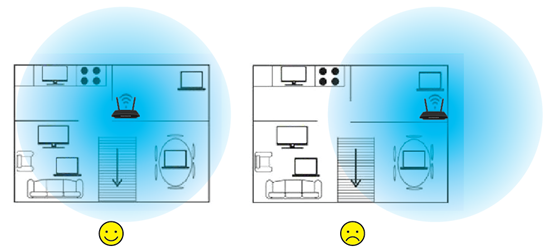

WiFi signals are picky.
Don’t hide your router:
❌ Behind the TV
❌ In a metal cabinet
❌ On the floor
Do this instead:
✅ Place it in the center of your home
✅ Put it on a shelf
✅ Keep it away from thick walls
This improves WiFi signal strength and speed.
🚀 Step 7: Test Your Internet Speed
After setup, check your connection.
You can use tools like:
- Speedtest by Ookla
Run a test.
If speeds are slow:
- Restart modem and router
- Move closer to router
- Reduce connected devices
🛠 Common Problems and Quick Fixes
Internet Not Working?
- Restart modem and router
- Check cable connections
- Call your ISP
WiFi Signal Is Weak?
- Move router
- Upgrade to mesh WiFi
- Add a WiFi extender
Too Many Devices?
Smart TVs, gaming consoles, smart speakers… they all use bandwidth.
Upgrade your internet plan if needed.
📶 When to Upgrade Your Equipment
If your router is 5+ years old, it may not support:
- WiFi 6
- WPA3 security
- Faster speeds
New routers improve performance and coverage.
It’s worth it.

❓ Frequently Asked Questions
1. How long does it take to set up home internet network?
Usually 20–40 minutes.
2. Do I need both a modem and router?
Yes — unless you have a combo device.
3. What is the best place for a router?
In the center of your home, off the floor.
4. How do I make my WiFi faster?
Move the router, reduce devices, or upgrade your plan.
5. What is WPA3?
It’s the newest WiFi security system. It protects your network.
6. Can I set up internet without a technician?
Yes. Most ISPs offer self-install kits.
🔑 Final Thoughts
Learning how to set up home internet network sounds hard. It’s not.
It’s just:
- Plug
- Connect
- Secure
- Test
That’s it.
No tech degree needed.
Once you do it yourself, you’ll wonder why you ever stressed about it.

Related Articles
The Simple Guide to T-Mobile 5G Gateway Setup at Home
How Keyword Research, Mobile UX & Reviews Fuel Business Growth
🚀 What NASA Satellite Testing Teaches Us About Building Better Websites
Apple iPhone 17 and Digital Marketing: New Tools, New Opportunities
Latest Articles
-
Google Review Management for Brooklyn Nursing Homes: A Complete Guide to Building Trust and Growing Your Reputation
When families begin searching for a Brooklyn nursing home, they almost always start online. Before making a phone call or scheduling a tour, they read Google reviews to learn about other families’ experiences. Positive feedback can reassure prospective residents, while unanswered negative reviews may raise concerns. Google review management has become one of the most…
-
Google Review Management Brooklyn | How To Get More 5-Star Reviews & Local SEO Success

Google Review Management for Brooklyn Businesses Your Google reviews can make the difference between gaining a new customer or losing them to a competitor. Whether you own a restaurant in Williamsburg, a dental practice in Park Slope, a contractor serving Bay Ridge, or a retail shop in Downtown Brooklyn, customers are reading your reviews before…
-
Improve Local SEO With Better Reviews for Your Service Business

Service businesses run on trust. Before customers book a contractor, plumber, electrician, roofer, HVAC company, cleaning service, landscaper, or repair professional, they usually check Google reviews first. They want to know:Can this company be trusted?Do they show up on time?Are they professional?Do they communicate well?Do past customers recommend them?That is why Google review management for…