Table of Contents
Just opened your box from T-Mobile?
You’re staring at that sleek gateway device wondering, “Okay… now what?”
Take a breath.
The T-Mobile 5G Gateway setup process is actually one of the easiest internet setups out there. No drilling. No cable tech. No mess.
Just plug, place, connect.
Let’s walk through it the simple way.
📦 What Comes in the Box?

Inside your package, you’ll usually find:
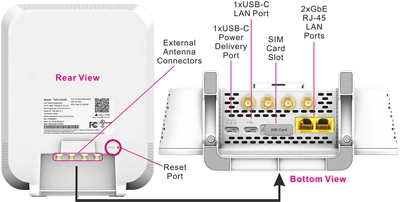
- T-Mobile 5G Gateway (modem + router combined)
- Power adapter
- Quick start guide
- SIM card (already installed in most units)
That’s it.
This device connects to 5G cell towers — just like your phone. That’s why setup is simple and fast.
📍 Step 1: Find the Best Spot in Your Home
Before plugging it in, choose the right location.
Signal strength matters with 5G internet.
Here’s what works best:
- Place it near a window
- Keep it on a table or shelf (not the floor)
- Avoid metal objects
- Keep away from thick concrete walls
- Don’t hide it behind a TV
Look for strong signal bars once it turns on.
More bars = better internet speed.
🔌 Step 2: Plug It In and Power It On
Now let’s power it up.
- Plug the power cable into the gateway.
- Plug it into a wall outlet.
- Press the power button if needed.
- Wait 2–5 minutes.
The screen or LED lights will show signal strength.
If you see 3 or more bars, you’re good to go.
📱 Step 3: Download the T-Mobile Internet App
To finish your T-Mobile 5G Gateway setup, download the official app.
You can get it from:
- Apple App Store
- Google Play
Search for T-Mobile Internet.
Open the app and:
- Log in with your T-Mobile ID
- Confirm your gateway
- Set your WiFi network name (SSID)
- Create a strong password
This only takes a few minutes.
🌐 Step 4: Connect Your Devices

Now connect your devices.
- Open WiFi settings on your phone or laptop.
- Find your new network name.
- Enter your password.
You’re online.
You can connect:
- Smart TVs
- Gaming consoles
- Tablets
- Security cameras
- Laptops
Just like regular home WiFi.
🔒 Step 5: Secure Your Network
Security is important.
Inside the T-Mobile Internet app, you can:
- Change your WiFi password
- See connected devices
- Pause WiFi access
- Check signal strength
Use a strong password with:
- Uppercase letters
- Lowercase letters
- Numbers
- Symbols
This keeps your network safe from unwanted users.
🚀 How to Improve Speed and Signal
If speeds feel slow, try this first:
Move the Gateway
Even moving it a few feet can boost signal.
Rotate the Device
Turn it slightly and watch the signal bars.
Keep It Clear
Don’t block it with furniture.
Restart It
Unplug for 30 seconds, then plug back in.
You can test speeds using Speedtest by Ookla.
📶 How the T-Mobile 5G Gateway Works
Traditional internet uses:
- Cable lines
- Fiber wires
T-Mobile uses:
- 4G LTE
- 5G wireless towers
Your gateway picks up the signal from nearby towers and turns it into WiFi.
No installation appointment needed.
It’s wireless home internet — simple and modern.
🛠 Common Problems and Quick Fixes
No Signal Bars?
Move closer to a window.
Internet Keeps Dropping?
Restart the gateway.
Devices Won’t Connect?
Double-check the WiFi password.
Slow Streaming?
Limit connected devices or reposition the gateway.
Most issues are fixed by moving the device.

❓ Frequently Asked Questions
1. How long does T-Mobile 5G Gateway setup take?
Usually 10–20 minutes.
2. Do I need a technician?
No. It’s self-install.
3. Can I move the gateway later?
Yes. Just unplug and place it somewhere else.
4. Is this good for gaming?
It works for casual gaming, but latency can vary.
5. Does weather affect 5G internet?
Heavy storms can slightly reduce speeds sometimes.
6. How many devices can connect?
Dozens, depending on usage.
🎯 Final Thoughts
The T-Mobile 5G Gateway setup is honestly one of the easiest internet setups you’ll ever do.
It’s really just:
- Pick the right spot
- Plug it in
- Use the app
- Connect your devices
No cables running through your walls.
No waiting days for an installer.
Just fast, wireless home internet in minutes.
And once it’s running, you’ll wonder why all internet setups aren’t this simple.
Related Articles
Stay Private, Stay Secure: Why IPVanish Is Worth Setting Up
Brooklyn Internet Providers Failing You? T-Mobile Home Internet Is the Upgrade You Need
How to Use Google Lens on iPhone (The Easy Beginner’s Guide)
How the Digital Elite Are Robbing Our Future: Learn How To Fight Back
How to Set Up T-Mobile Home Internet: Step-by-Step Guide for Fast, Reliable Wi-Fi
Latest Articles
-
Best Ways Businesses Use Google Translate Camera to Improve Google Reviews & Local SEO
Start Exploring life’s complex tapestry, options reveal routes to the exceptional, requiring innovation, inquisitiveness, and bravery for a deeply satisfying voyage. Exploring life’s complex tapestry, options reveal routes to the exceptional, requiring innovation, inquisitiveness, and bravery for a deeply satisfying voyage. Businesses serve customers from…
-
Google Review Management Pricing: The Smartest Way to Get More 5-Star Reviews
Your Google reviews can either grow your business or quietly drive customers to your competitors. Before someone calls your business, books a service, or visits your location, they almost always check your online reviews first. Businesses with stronger ratings and more recent reviews often win…
-
Proven Strategies to Build a Powerful Online Presence for Business Growth
What happens when someone Googles your business? Do they find a professional website, glowing Google reviews, an optimized Google Business Profile, and strong search rankings? Or do they find outdated information, poor visibility, and competitors dominating the search results? In 2026, your online presence is…